Quick Answer: How to Recover Deleted Files on Windows
You can recover deleted files on Windows by checking the Recycle Bin, restoring previous file versions, or using file recovery software such as Recuva, Disk Drill, or EaseUS Data Recovery Wizard. Recovery is possible as long as the deleted data has not been overwritten on the disk.
Accidentally deleting important files can feel like a disaster. Whether it’s photos, documents, or project files, many Windows users immediately search for ways to recover deleted files.
The good news is that deleted files can often be recovered, even after emptying the Recycle Bin.
In this guide, you’ll learn:
- What to do immediately after deleting a file
- When deleted files can still be recovered
- The best recovery software for Windows
- Step-by-step instructions to restore your files
Accidentally Deleted a File? Do These 3 Things Immediately
If you want the best chance of recovery, act quickly.
1. Stop Using the Drive
When a file is deleted, Windows does not immediately erase the data. The system simply marks that space as available.
If you keep using the drive, new data may overwrite the deleted file permanently.
2. Check the Recycle Bin
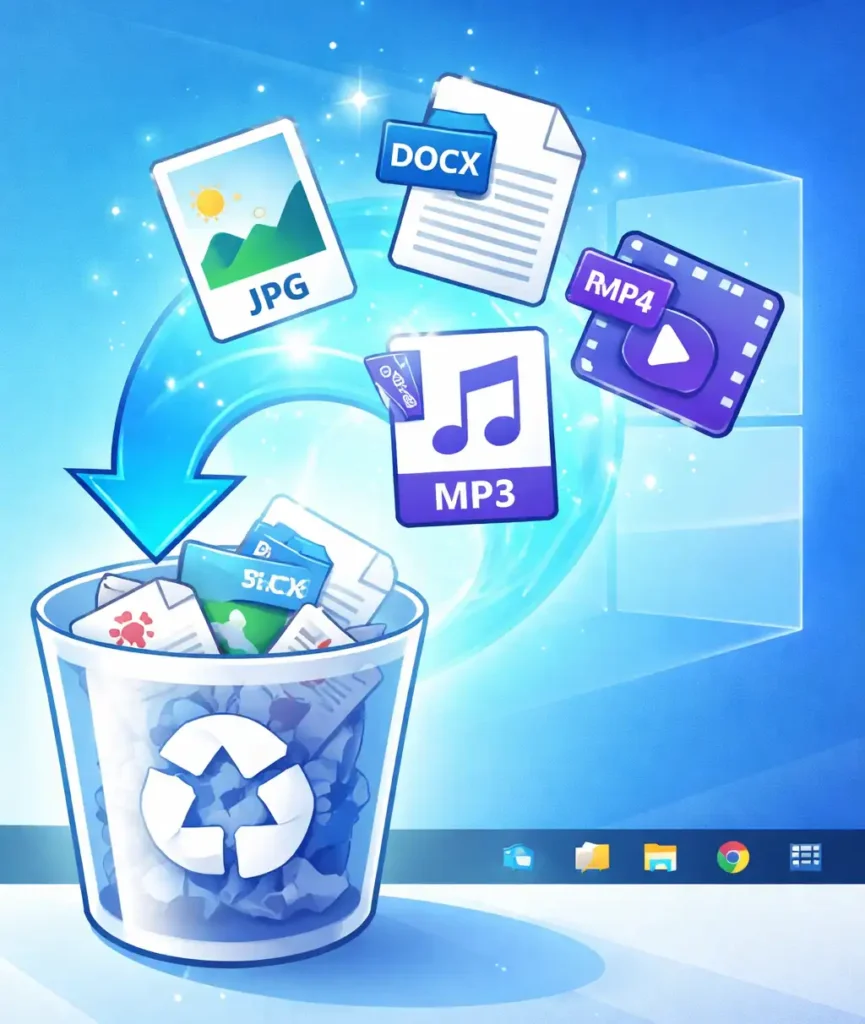
Many deleted files are still there.
Steps:
- Open Recycle Bin
- Locate the deleted file
- Right-click it
- Select Restore
The file will return to its original location.
3. Avoid Installing New Programs
Installing new software can overwrite deleted data. If possible, use file recovery software installed on another drive or USB.
Can Deleted Files Actually Be Recovered?
Yes — in many cases.
When you delete a file on Windows:
- The file itself remains on the disk.
- Only the file system reference is removed.
- The data remains until it is overwritten by new files.
This is why recovery software can scan the disk and reconstruct deleted files.
However, recovery success depends on:
- Time since deletion
- Disk activity after deletion
- HDD vs SSD
- File fragmentation
On SSDs, recovery may be harder because of a feature called TRIM, which clears deleted data automatically.
Best Free Tools to Recover Deleted Files (Windows)
If the file is not in the Recycle Bin, recovery software is usually the best solution.
Below are some of the most effective and widely trusted file recovery tools for Windows.
| Software | Free Recovery | Difficulty | Best For |
|---|---|---|---|
| Recuva | Unlimited | Very Easy | Quick recovery for recently deleted files |
| Disk Drill | 500MB | Easy | Deep scans and modern recovery features |
| EaseUS Data Recovery Wizard | 2GB | Easy | Reliable recovery for many scenarios |
| PhotoRec | Unlimited | Advanced | Powerful open-source recovery |
| Stellar Data Recovery | 1GB | Easy | User-friendly deep scan recovery |
Among these tools, Recuva is often the best starting point for most users, especially if the files were deleted recently.
Which Recovery Tool Should You Try First?
Choosing the right tool depends on your situation. Here is a quick decision guide.
| Situation | Recommended Tool |
|---|---|
| Recently deleted files | Recuva |
| Deep recovery needed | Disk Drill |
| Large recovery tasks | EaseUS Data Recovery Wizard |
| Advanced free recovery | PhotoRec |
| User-friendly deep scans | Stellar Data Recovery |
For most users, starting with Recuva is the best option because it is free, simple, and effective for recent deletions.
| Tool | Free Version | Ease of Use | Best For |
|---|---|---|---|
| Recuva | Yes | Easy | Beginners |
| Windows File Recovery | Yes | Advanced | Deep recovery |
| PhotoRec | Yes | Advanced | Damaged drives |
Recuva: A Powerful Free Tool to Recover Deleted Files
Recuva, developed by Piriform (the creators of CCleaner), is one of the most popular file recovery tools for Windows.
It is especially useful because it:
- Recovers deleted files from hard drives, SSDs, USB drives, and memory cards
- Supports many file types including documents, photos, videos, and emails
- Offers deep scanning for difficult recovery situations
- Has a free version with unlimited recovery
Because of its simplicity and effectiveness, Recuva is often the first tool recommended for recovering deleted files on Windows.
It works best when the file was deleted recently and the disk has not been heavily used afterward.
When Recuva May Not Be Enough
In some situations, a deeper recovery engine may be required.
For example:
- Recovering files from formatted drives
- Recovering files from damaged partitions
- Recovering files deleted long ago
In such cases, tools like Disk Drill or EaseUS Data Recovery Wizard may perform better because they include more advanced scanning algorithms.
For technically advanced users, PhotoRec is another powerful option. It is a free open-source recovery tool capable of recovering many file types, although its interface is less user-friendly.
How to Recover Deleted Files Using Recuva (Step-by-Step)
Follow these steps to recover deleted files quickly.
Step 1: Install Recuva
Download and install Recuva from the official website.
If possible, install it on a different drive than the one containing the deleted files.
Step 2: Launch the Recovery Wizard
Open Recuva.
The recovery wizard will guide you through the process.
Select the type of file you want to recover:
- Pictures
- Documents
- Videos
- Music
- All files
Step 3: Select File Location
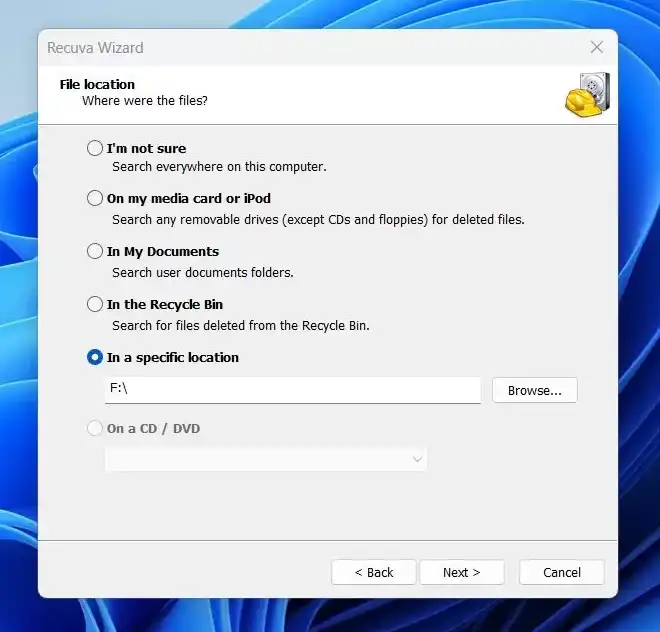
Choose where the deleted file was stored.
Examples:
- Desktop
- Documents
- USB drive
- Specific folder
If unsure, choose I’m not sure.
Step 4: Enable Deep Scan (optional, but recommended)
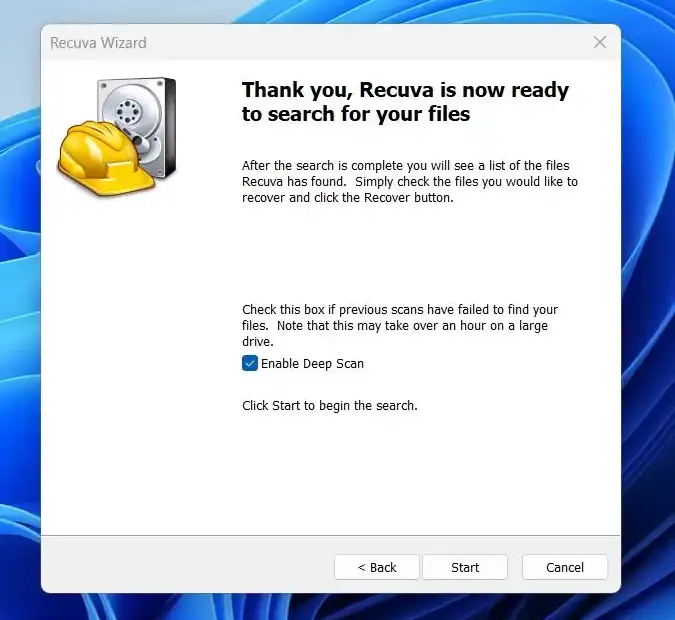
For better recovery chances, enable Deep Scan.
This performs a more thorough search of the drive.
Step 5: Recover Your Files
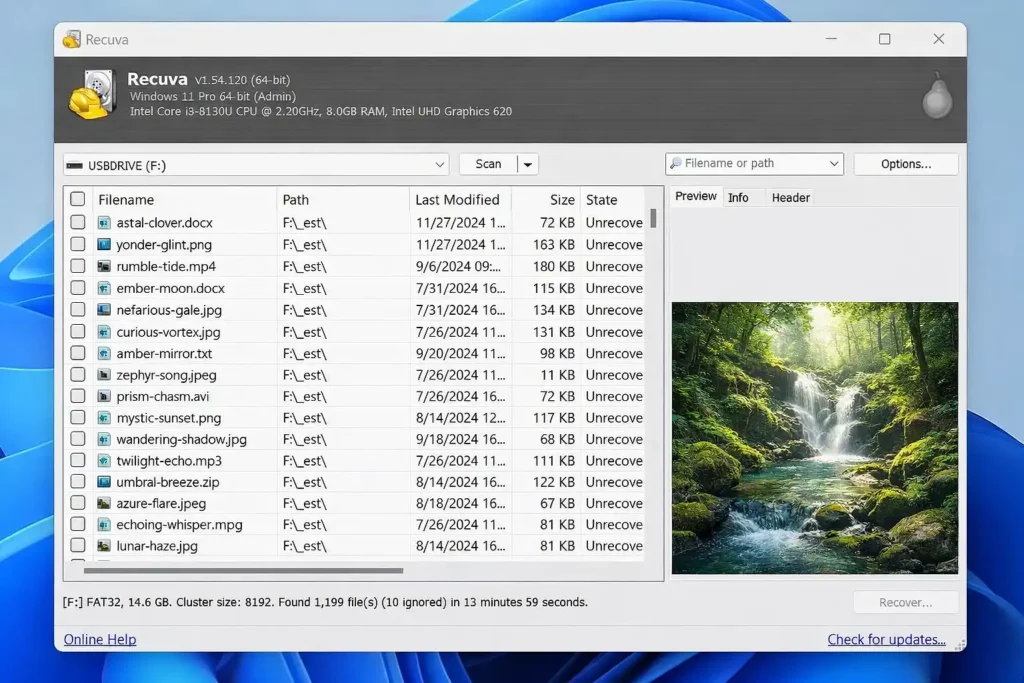
After scanning, Recuva will display recoverable files.
Each file is marked with a status:
- Excellent – fully recoverable
- Poor – partially overwritten
Select the files you want and click Recover.
Save them to another drive.
Recover Deleted Files Using Windows File Recovery
Windows includes a free command-line tool called Windows File Recovery that can help restore deleted files from hard drives, SSDs, USB drives, and memory cards. This tool is developed by Microsoft and is especially useful when files have been permanently deleted or removed from the Recycle Bin.
Windows File Recovery works by scanning the storage drive for file data that has not yet been overwritten. If the deleted file’s data still exists on the disk, the tool may be able to restore it.
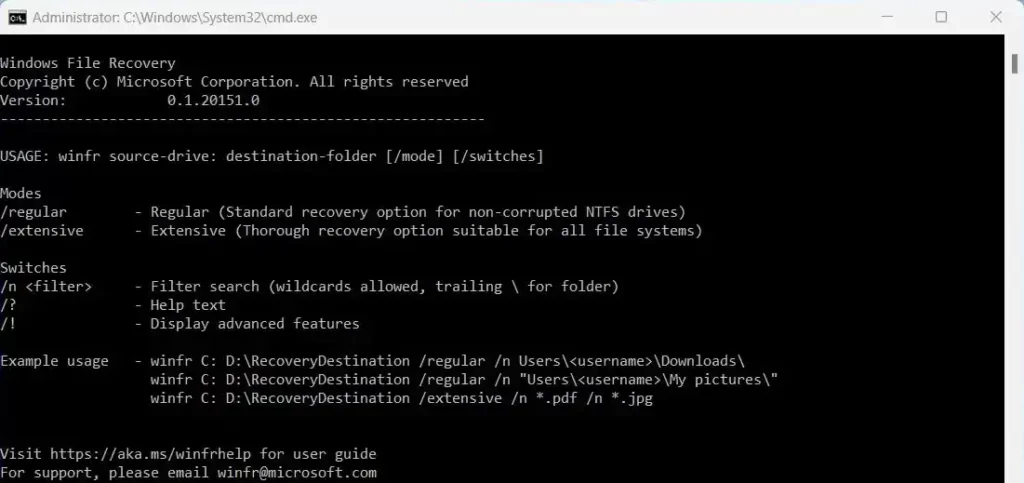
Step 1: Install Windows File Recovery
- Open the Microsoft Store on your Windows PC.
- Search for Windows File Recovery.
- Click Install to download the tool.
Once installed, the program can be run through Command Prompt or Windows Terminal.
Step 2: Run the Recovery Command
Open Command Prompt as Administrator and type a command similar to the example below:
winfr C: D: /regular /n *.docx
In this command:
- C: is the drive where the files were deleted from
- D: is the destination drive where recovered files will be saved
- /regular specifies the recovery mode
- *.docx searches for deleted Word documents
The tool will scan the selected drive and attempt to recover matching files.
Step 3: Check the Recovered Files
Once the scan finishes, Windows File Recovery will place restored files inside a folder on the destination drive. Review the recovered files and move them to a safe location.
When to Use Windows File Recovery
Windows File Recovery is most useful when:
- Files were permanently deleted (Shift + Delete)
- The Recycle Bin has been emptied
- Files were deleted from external drives or USB devices
Because it uses command-line commands, this tool is better suited for advanced users. Beginners may find graphical tools like Recuva easier to use.
Can You Recover Files After Emptying the Recycle Bin?
Yes, in many cases you can.
Even after the Recycle Bin is emptied, Windows usually does not erase the actual file data immediately.
Instead, the system simply marks the storage space as available for new files.
This means recovery software may still find and restore the deleted files — as long as the disk space has not been overwritten.
For the best results:
- Stop using the affected drive immediately
- Run recovery software as soon as possible
- Save recovered files to another drive
Can You Recover Permanently Deleted Files?
Important to note:
- files remain on disk until overwritten
- recovery success depends on time
Deleted files can often be recovered because the system usually marks the disk space as free instead of erasing the data immediately.
When File Recovery Might Fail
Unfortunately, recovery is not always possible.
Files may be unrecoverable if:
- The disk space was overwritten by new data
- The SSD TRIM feature cleared the data
- The drive was formatted multiple times
- The file was fragmented and partially overwritten
This is why acting quickly is important.
Other Ways to Recover Deleted Files
If software recovery fails, you may try:
File History Backup
Windows File History may contain a previous version of the file.
Steps:
- Right-click the folder
- Select Restore previous versions
Cloud Storage
If you use services like:
- OneDrive
- Google Drive
- Dropbox
They often keep deleted file history for 30 days or more.
Professional Data Recovery
If the files are extremely important, professional recovery services can sometimes recover data from damaged drives.
However, this can be expensive.
Tips to Increase Your Recovery Chances
To maximize recovery success:
- Stop using the drive immediately
- Run recovery software quickly
- Recover files to a different drive
- Avoid installing new programs on the affected disk
These precautions prevent deleted data from being overwritten.
Related Windows Guides
- If you’re exploring ways to manage files and improve your Windows experience, these guides from Modern Tech Digest may also be helpful.
- Speed Up Windows 10 and 11 (Proven Fixes)
If your PC has become slow over time, this guide explains several practical steps to improve performance and make Windows run faster. - Windows 11 Essential Tweaks Every User Should Know
Discover useful tweaks that can improve usability, remove common annoyances, and make Windows 11 more efficient. - How to Restore the “This PC” Icon in Windows
If the “This PC” icon is missing from your desktop, this guide explains how to restore it so you can easily access your drives and folders. - Windows 11 Clipboard History: How to Enable and Use It
Learn how Clipboard History works and how it allows you to access previously copied items to improve productivity in Windows.
Final Thoughts
Accidentally deleting files on Windows is frustrating, but recovery is often possible.
In most cases, you can restore deleted files by:
- Checking the Recycle Bin
- Using file recovery software
- Restoring from backups
For most users, Recuva is the best tool to try first because it is free, simple, and effective for recently deleted files.
If deeper recovery is needed, tools like Disk Drill, EaseUS Data Recovery Wizard, or Stellar Data Recovery may provide better results.
Act quickly and follow the correct steps, and there is a good chance you can recover your deleted files successfully.