
Quick Answer:
To check laptop battery health in Windows, open Command Prompt or Terminal, type powercfg /batteryreport, and press Enter. Windows will generate a battery report showing your battery’s design capacity, current full charge capacity, usage history, and battery wear level. Open the generated battery-report.html file to view the full health details.
What Laptop Battery Health Means
Battery health refers to how much capacity your laptop battery can still hold compared to when it was new.
All laptop batteries gradually degrade over time due to charging cycles, heat, and daily usage.
For example:
| Battery State | Capacity |
|---|---|
| New battery | 100% capacity |
| After 1–2 years | ~80–90% capacity |
| Aging battery | 60–70% capacity |
Once battery health drops too low, the laptop may:
- Drain very quickly
- Shut down unexpectedly
- Require constant charging
Windows Battery Health Command
Windows has a hidden built-in tool that generates a detailed battery health report.
The command is:
powercfg /batteryreport
This command creates a report containing:
- Design capacity (original battery capacity)
- Current full charge capacity
- Charge cycles
- Battery usage history
- Estimated battery life
No third-party software is required.
How to Check Laptop Battery Health in Windows
Follow these steps to generate the battery report.
Step 1
Press Windows + X on your keyboard.
Step 2
Select Terminal (Admin) or Command Prompt (Admin).
Step 3
Type the following command:
powercfg /batteryreport
Step 4
Press Enter.
Step 5
Windows will generate a battery report and display the file location.
Example output:
Battery life report saved to
C:\Users\YourName\battery-report.html
Where to Find the Battery Report File
Open File Explorer and go to:
C:\Users\YourUsername\
Look for a file named:
battery-report.html
Double-click the file to open it in your web browser.
The report will show detailed battery information collected by Windows.
How to Read the Battery Health Report
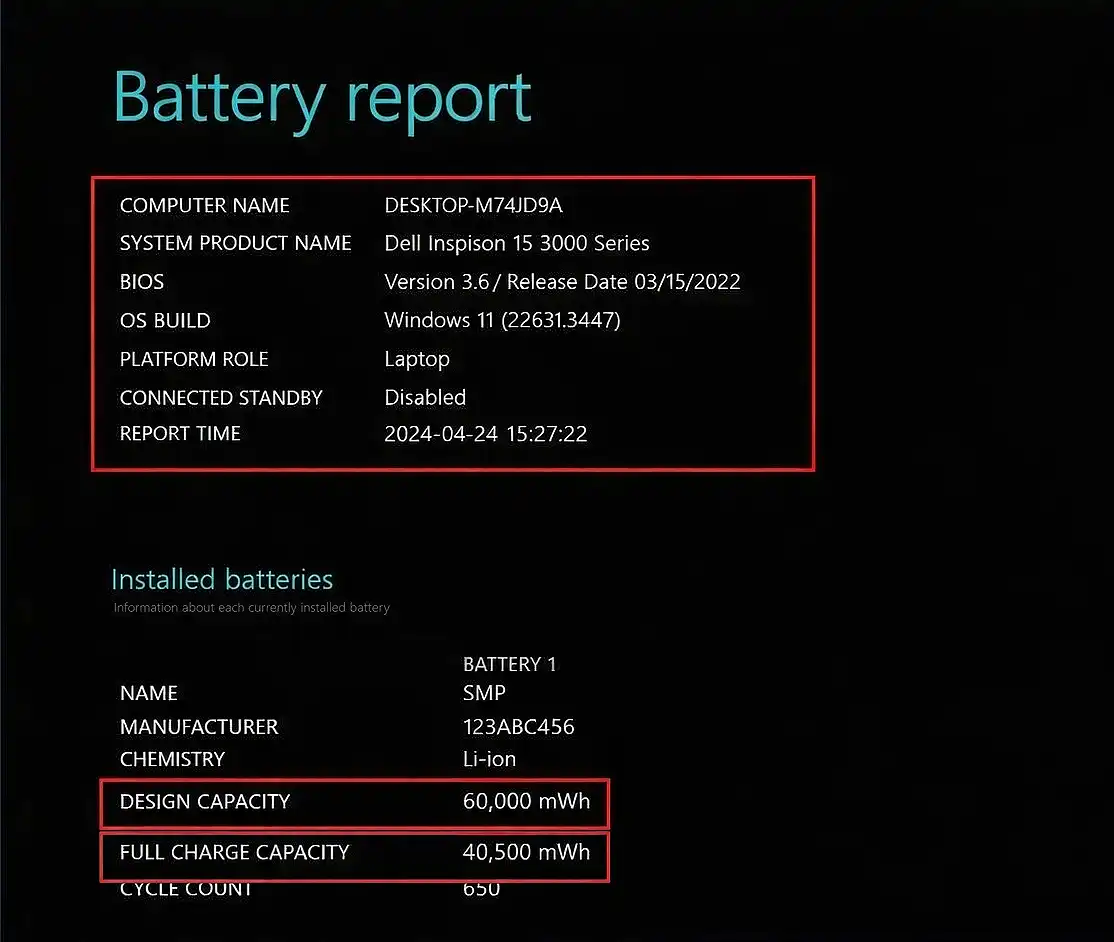
Inside the report, find the section called Installed Batteries.
Two important values determine battery health.
| Value | Meaning |
|---|---|
| Design Capacity | Battery capacity when it was new |
| Full Charge Capacity | Maximum charge your battery can currently hold |
Example of Battery Health Calculation
Example report values:
| Battery Metric | Value |
|---|---|
| Design Capacity | 50,000 mWh |
| Full Charge Capacity | 38,000 mWh |
Battery health calculation:
38,000 ÷ 50,000 = 0.76
Battery health = 76%
This means the battery has lost 24% of its original capacity.
When You Should Replace Your Laptop Battery
Most laptop batteries last 300–800 charge cycles.
You should consider replacing the battery if:
- Battery health drops below 60%
- Laptop shuts down suddenly
- Battery drains very quickly
- Charging cycles exceed 700–800 cycles
Typical laptop battery lifespan:
| Usage Level | Battery Lifespan |
|---|---|
| Light usage | 3–4 years |
| Moderate usage | 2–3 years |
| Heavy usage | 1.5–2 years |
Tips to Extend Laptop Battery Life
You can slow battery degradation with a few simple habits.
Avoid constant 100% charging
Keeping your laptop plugged in continuously can accelerate battery wear.
Avoid draining to 0% often
Deep discharges stress lithium batteries.
Keep the laptop cool
Heat is one of the biggest factors that damages batteries.
Use balanced power mode
High performance mode increases battery cycles.
Frequently Asked Questions
Can Windows show battery health directly?
No. Windows does not display battery health in the Settings app. However, you can generate a detailed battery report using the command powercfg /batteryreport.
Does the battery report work on Windows 11 and Windows 10?
Yes. The powercfg /batteryreport command works on both Windows 10 and Windows 11.
How often should I check battery health?
Checking your battery health every few months is usually enough to monitor battery wear.
More Helpful Windows Tips
If you found this guide useful, you might also like these helpful Windows tutorials from Modern Tech Digest. These guides can help you customize Windows, fix common issues, and improve your PC’s performance.
- How to Speed Up Windows 10 and 11 (Simple Methods That Work)
- How to Move the Start Menu to the Left in Windows 11
- How to Remove the Recommended Section in Windows 11 Start Menu
- Windows 11 Version 25H2: Features, Changes, and Upgrade Guide
Final Thoughts
Checking laptop battery health in Windows is simple using the built-in battery report tool. By running the command powercfg /batteryreport, you can see your battery’s real capacity, usage history, and overall wear level in just a few seconds.
Regularly monitoring battery health helps you identify when the battery is degrading and decide when it might be time for a replacement.
Hello, I enjoy reading through your article post.
I like to write a little comment to support you.
That is a very good tip especially to those new to the blogosphere.
Simple but very accurate info… Thanks for sharing this one.
A must read article!