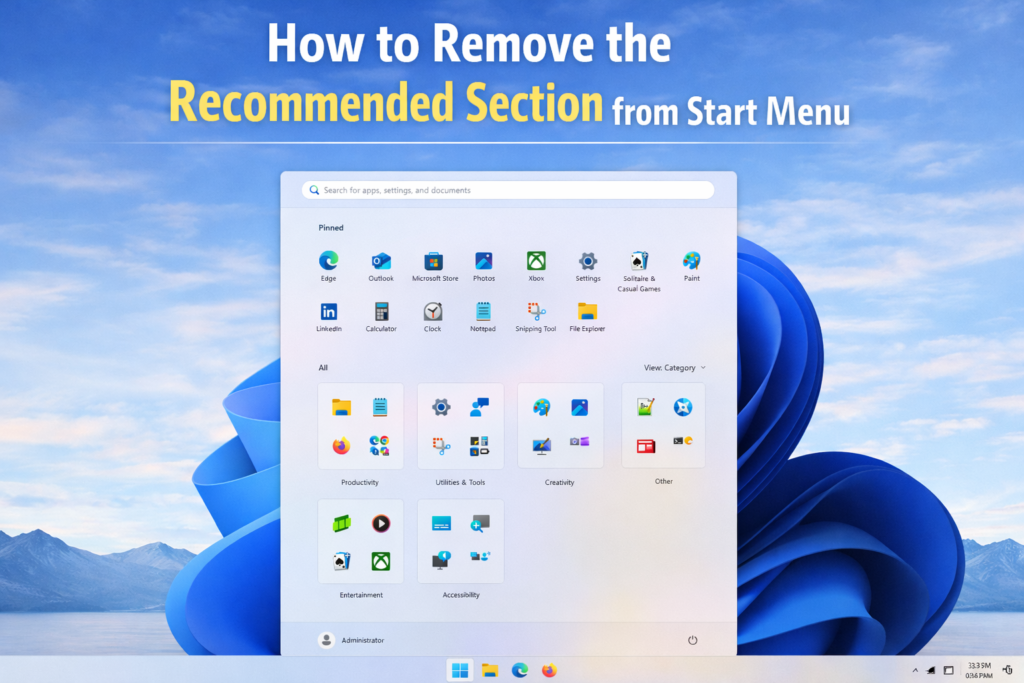
Steps to Remove the Recommended Section in Windows 11
- Click the Start button.
- Open Settings.
- Select Personalization.
- Click Start.
- Turn off:
- Show recently added apps
- Show most used apps
- Show recently opened items in Start, Jump Lists, and File Explorer
If you’ve opened the Start menu in Windows 11, you’ve probably noticed the “Recommended” section at the bottom.
It shows:
- Recently opened files
- Recently installed apps
- Frequently used apps
- Occasionally suggested content
For some users, that’s helpful.
For many others, it feels like clutter — or worse, a privacy issue.
If you’re looking to remove it, here’s the simple, official way to do it.
What Is the Recommended Section in Windows 11?
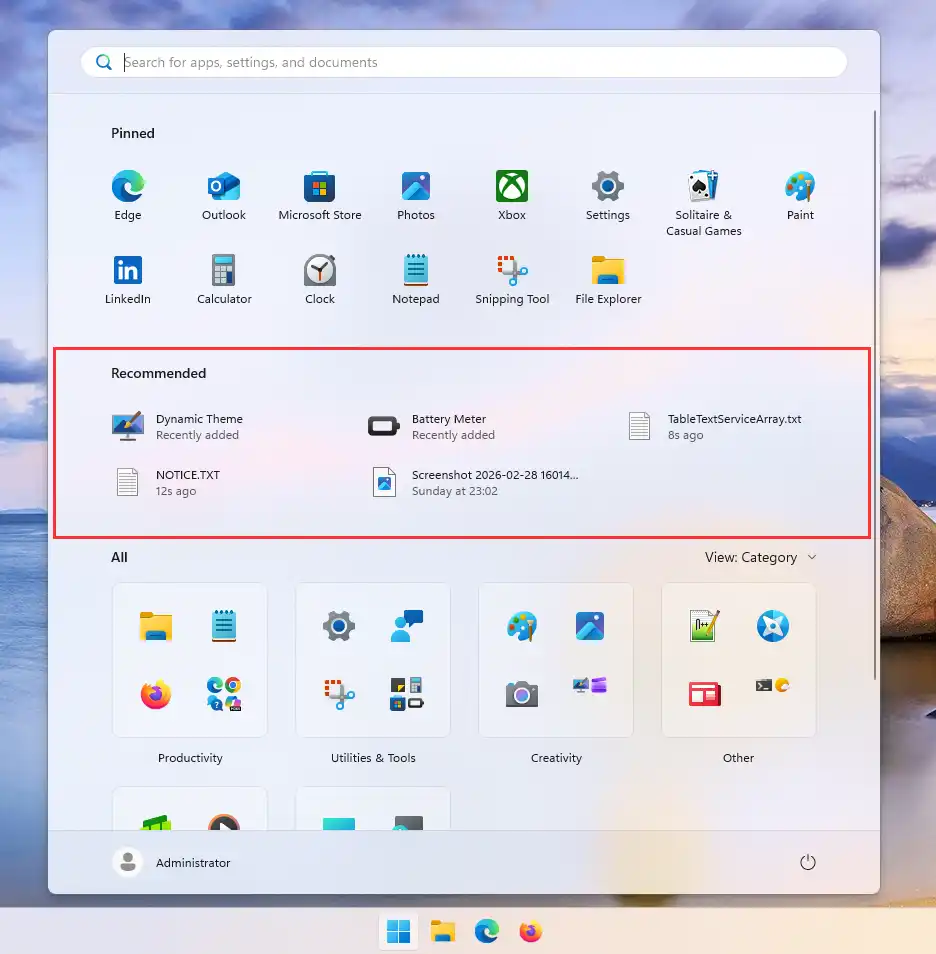
Windows 11 redesigned the Start menu compared to Windows 10. Instead of Live Tiles, you now get:
- Pinned apps (top half)
- Recommended section (bottom half)
The Recommended area dynamically updates based on your activity.
That means if you open a document, install a program, or frequently use an app, Windows may display it here automatically.
While Microsoft designed this to help you resume work quickly, not everyone wants their recent activity displayed front and center.
If you’re customizing the Windows 11 interface further, you may also want to move the Start menu to the left like classic Windows versions.
Why Does Windows 11 Show Recommended Files in Start?
Windows 11 shows recommended files and apps in the Start menu to help users quickly resume recent work. The system automatically displays recently opened documents, newly installed apps, and frequently used programs based on your activity.
Why Do Users Want to Remove It?
After working with countless Windows setups, here are the most common reasons:
– Privacy Concerns
If you open sensitive documents, those file names can appear in Start.
This is especially awkward on:
- Shared family computers
- Office PCs
- Presentation screens
– Cluttered Start Menu
Many users prefer a clean, minimal Start menu with only pinned apps.
The Recommended section takes up valuable space.
– Unwanted App Suggestions
Some users don’t like Windows automatically highlighting recently installed or suggested apps.
If any of this sounds familiar, the fix below will solve it.
How to Remove the Recommended Section in Windows 11
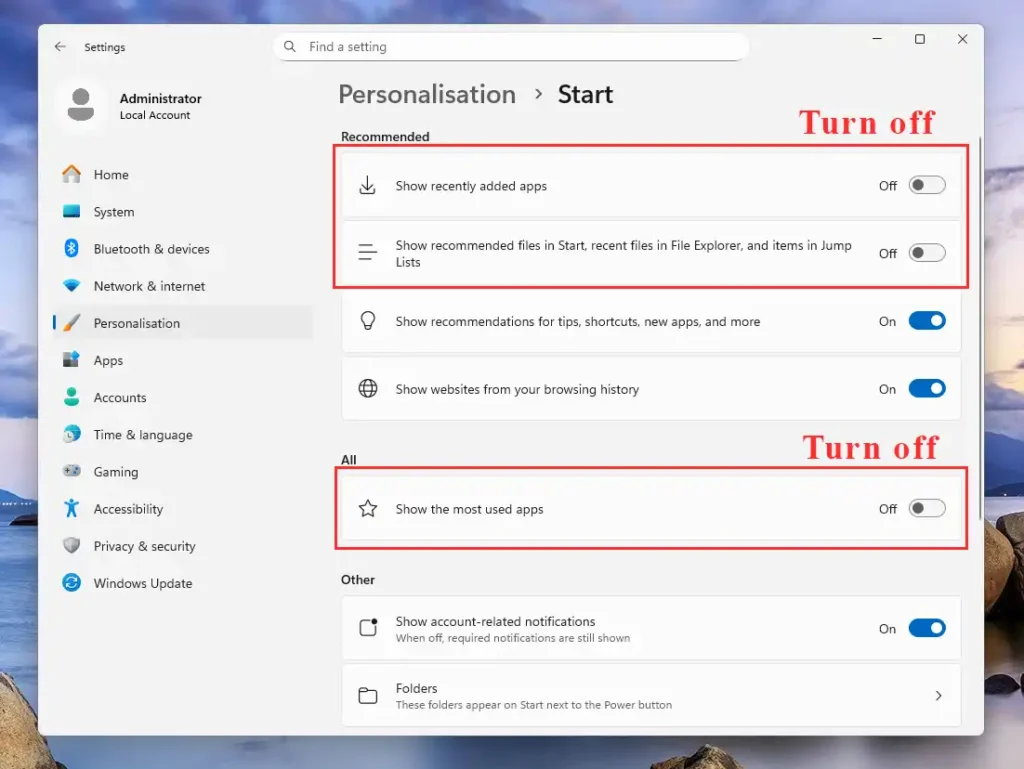
You only need to adjust one settings page.
Quick Steps
To remove the Recommended section in Windows 11:
- Open Settings
- Go to Personalization
- Click Start
- Turn off all recommendation options
That’s it.
Once disabled:
- Windows stops showing recent files in Start.
- Recently installed apps won’t be highlighted.
- Start menu suggestions are turned off.
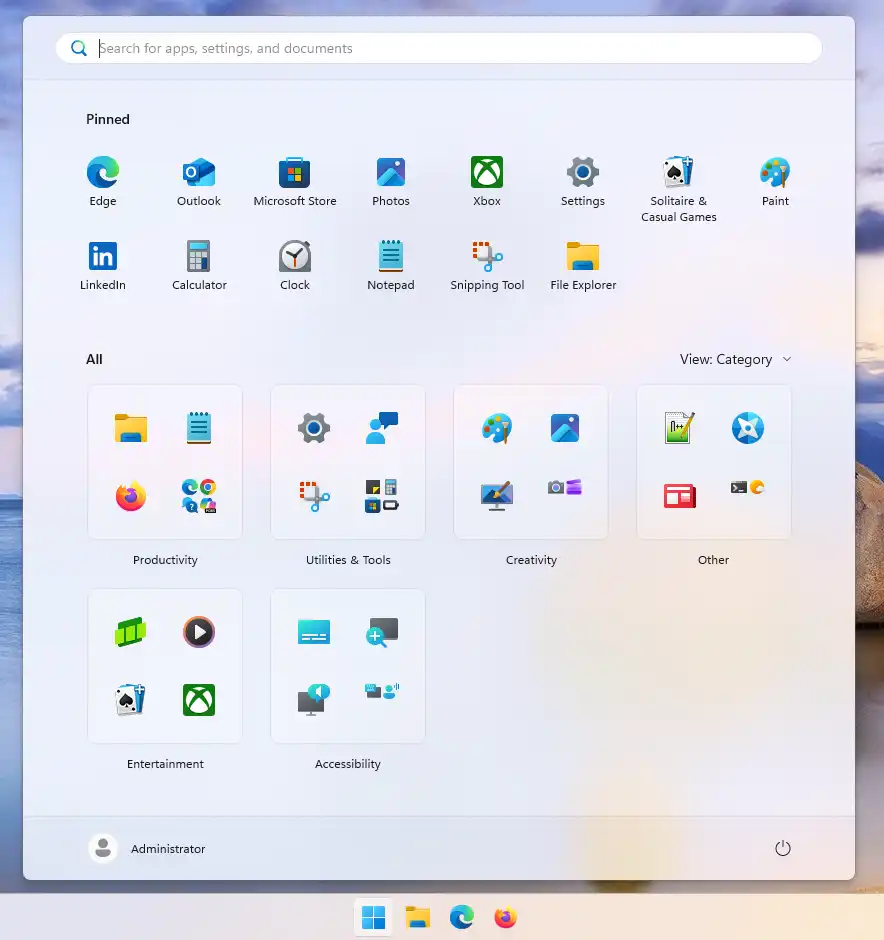
Recommended Section Removed from the Start menu
On newer Windows 11 builds (including 25H2), the Recommended section may collapse entirely and free up space.
On older builds, the section may remain visible but stay empty.
Either way, your activity will no longer appear there.
How to Remove “Recently Added Apps” from Start Menu
If your main issue is new apps automatically appearing in Start, this is controlled by:
Show recently added apps
Turning this off prevents Windows from promoting new installations in the Start menu.
This is useful if you frequently install utilities and don’t want them auto-highlighted.
How to Stop Windows 11 from Showing Recent Files
If privacy is your main concern, focus on this option:
Show recently opened items in Start, Jump Lists, and File Explorer
Disabling this stops Windows from:
- Showing recent documents in Start
- Displaying file history in Jump Lists
- Tracking recent file activity in certain system areas
This is especially helpful on shared or office computers.
Does This Completely Delete the Recommended Section?
Here’s the honest answer:
Windows 11 does not provide a separate “Delete Recommended Section” button.
Disabling recommendations is the official method.
On newer versions of Windows 11, the section often disappears entirely once all toggles are off.
On older versions, it may remain visible but empty.
Either way, it stops displaying content.
Why Is Windows 11 Showing Random Apps in Start?
If you’ve seen apps appear automatically, it’s usually because:
- “Show recently added apps” is enabled
- “Show most used apps” is enabled
- Windows is surfacing suggested content
It’s not malware or spyware — it’s a built-in personalization feature.
Turning off the three settings above stops that behavior.
If your PC feels slow while installing many apps, check our guide on how to speed up Windows 10 and 11.
If You Miss the Windows 10 Start Menu
Windows 11 removed Live Tiles and introduced the Recommended section as part of its redesign.
If you migrated from Windows 10 and prefer a simpler layout, disabling recommendations makes the Start menu feel much closer to the classic experience.
Many users also prefer to restore the classic right-click menu in Windows 11 to make the interface feel closer to Windows 10.
Frequently Asked Questions
Which setting does what
| Setting | What It Does |
|---|---|
| Show recently added apps | Displays newly installed apps |
| Show most used apps | Shows frequently used programs |
| Show recently opened items | Displays recent documents |
Does this work on Windows 11 23H2, 24H2, and 25H2?
Yes. The settings location remains the same.
The only difference is how the Start menu visually behaves afterward.
Will disabling this affect File Explorer?
If you turn off “Show recently opened items,” you may see fewer recent files in Jump Lists and certain quick access areas. That’s expected.
Is the Recommended section a virus?
No. It’s a built-in Windows feature designed to surface recent activity.
Related Windows 11 Guides
- How to move the Windows 11 Start menu to the left
- How to restore the classic right-click menu in Windows 11
- Speed up Windows 10 and 11 with these proven fixes
Final Thoughts
The Recommended section isn’t harmful — but it’s not for everyone.
If you prefer:
- A cleaner Start menu
- Better privacy
- More control over what Windows displays
Then turning off these three toggles is the quickest way to take control.