
If your PC suddenly lost 20GB, 50GB, or even 100GB of storage, a few large files are usually responsible.
Many Windows users run into this issue when:
- the C drive suddenly becomes full
- Windows shows low disk space warnings
- the system slows down due to limited storage
The cause is usually large hidden files or folders, such as old downloads, ISO files, game installations, backups, or temporary Windows update files.
In this guide, you’ll learn the fastest ways to find large files and folders in Windows 10 and Windows 11 and recover disk space quickly.
How to Find Large Files Taking Up Space on Windows
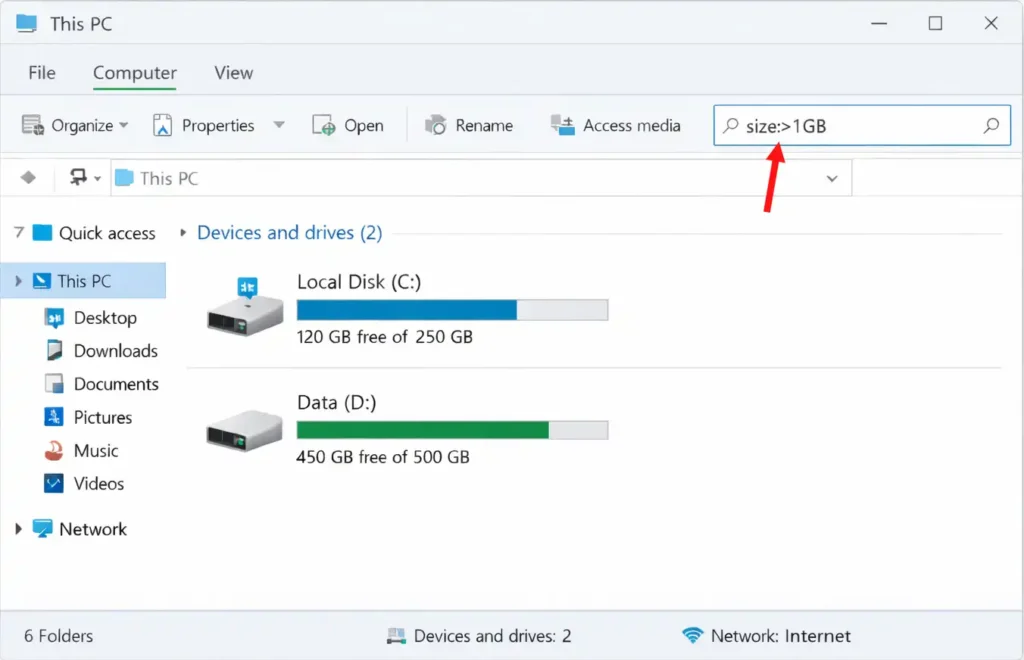
The fastest way to find large files on Windows is to open File Explorer, go to This PC, and search using a a size filter like:
size:>1GB
Windows will instantly display files larger than 1GB. You can then sort the results by Size to quickly identify which files are taking up the most disk space.
Fastest Ways to Find Large Files on Windows
The easiest methods to locate large files taking up disk space include:
- Use File Explorer size search filters
- Scan the drive with WizTree
- Use WinDirStat disk visualization
- Check Windows Storage settings
- Sort folders by file size
Using a disk analyzer tool is usually the fastest way to identify hidden storage hogs.
Windows File Size Search Filters
Windows File Explorer supports several size filters that help locate large files quickly.
| Search Filter | Finds Files Larger Than |
|---|---|
| size:large | 1MB – 16MB |
| size:huge | 16MB – 128MB |
| size:gigantic | Larger than 128MB |
| size:>1GB | Files larger than 1GB |
| size:>4GB | Extremely large files |
These filters make it easy to find large files without manually checking each folder.
Why Is My Disk Suddenly Full on Windows?
Your disk usually becomes full because of:
- large downloads
- video files
- game installations
- ISO installers
- backup archives
- temporary Windows update files
These files can accumulate over time and consume tens of gigabytes of storage.
If Your SSD Suddenly Filled Up Overnight
Sudden storage loss often happens because of:
- Windows updates downloading files
- large game downloads
- forgotten ISO files
- temporary update files
- automatic backups
If your drive suddenly fills up, check these folders first:
- Downloads
- Desktop
- Videos
- Documents
- Steam or game libraries
- Virtual machine folders
These locations often contain multi-gigabyte files users forget about.
Method 1: Use WizTree (Fastest Way to Find Large Files)
Credits: https://en.uptodown.com
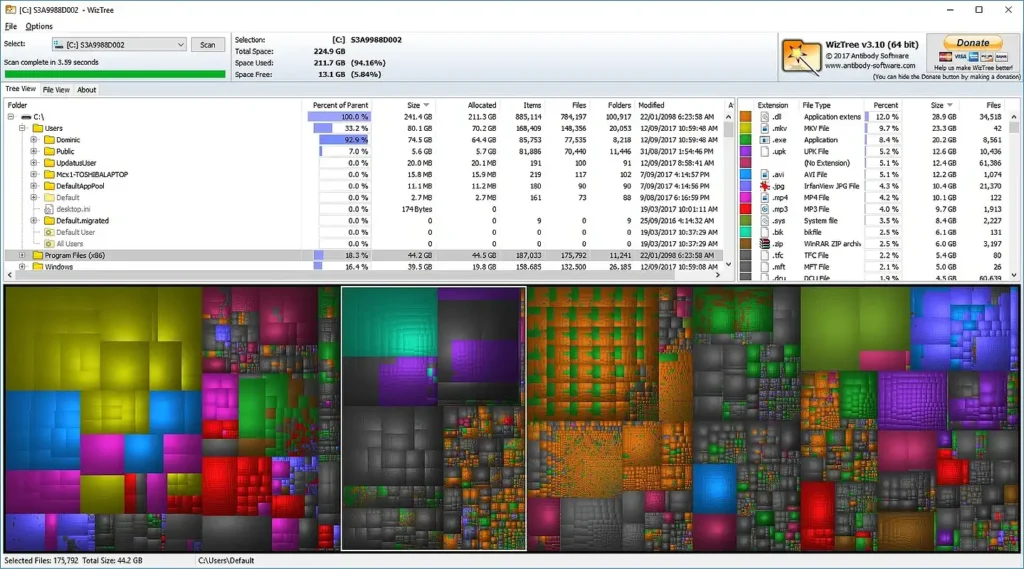
WizTree is one of the fastest disk analysis tools available for Windows.
Instead of scanning every file manually, WizTree reads the NTFS Master File Table, allowing it to scan an entire drive in just seconds.
Benefits of WizTree
- extremely fast scans
- instantly shows the largest files
- highlights large folders
- visual disk usage map
Users often discover hidden storage hogs such as:
- large ISO installation files
- Steam game folders
- backup archives
- video files
Removing or moving these files can quickly free up tens of gigabytes of storage.
How to Use WizTree to Find Large Files
Follow these steps to quickly identify large files using WizTree.
- Download and install WizTree.
- Launch the program and select the drive you want to scan (usually C:).
- Click Scan.
- After the scan finishes, sort files by Size.
- Locate the largest files or folders and delete or move unnecessary ones.
WizTree will immediately display which files and folders are consuming the most disk space, making it easy to identify storage hogs.
Method 2: Use WinDirStat for a Visual Disk Map
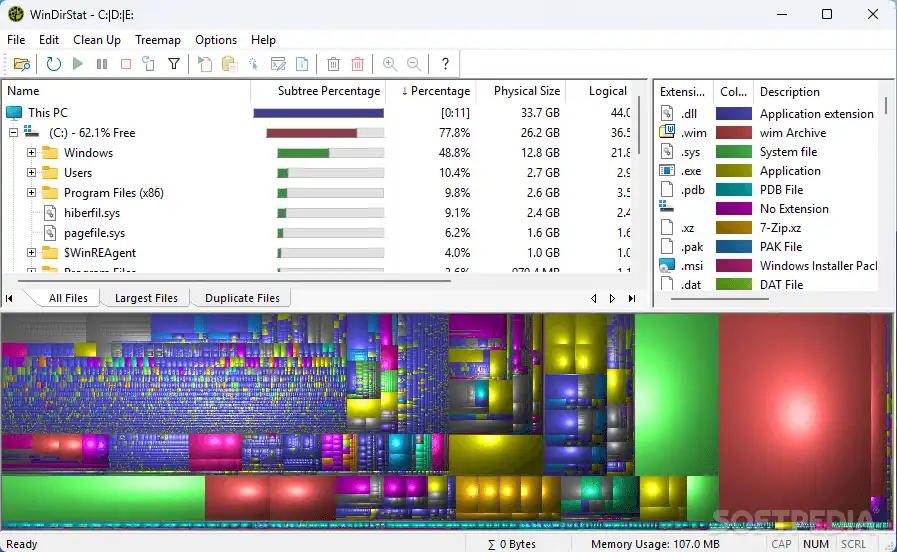
Credits: https://www.softpedia.com
WinDirStat displays disk usage using a treemap visualization.
How the treemap works
- each rectangle represents a file
- larger rectangles represent larger files
- colors represent different file types
This visual layout makes it easy to identify large files taking up the most space.
For example, a large video file will appear as a large colored block in the map.
Method 3: Use Windows Storage Settings
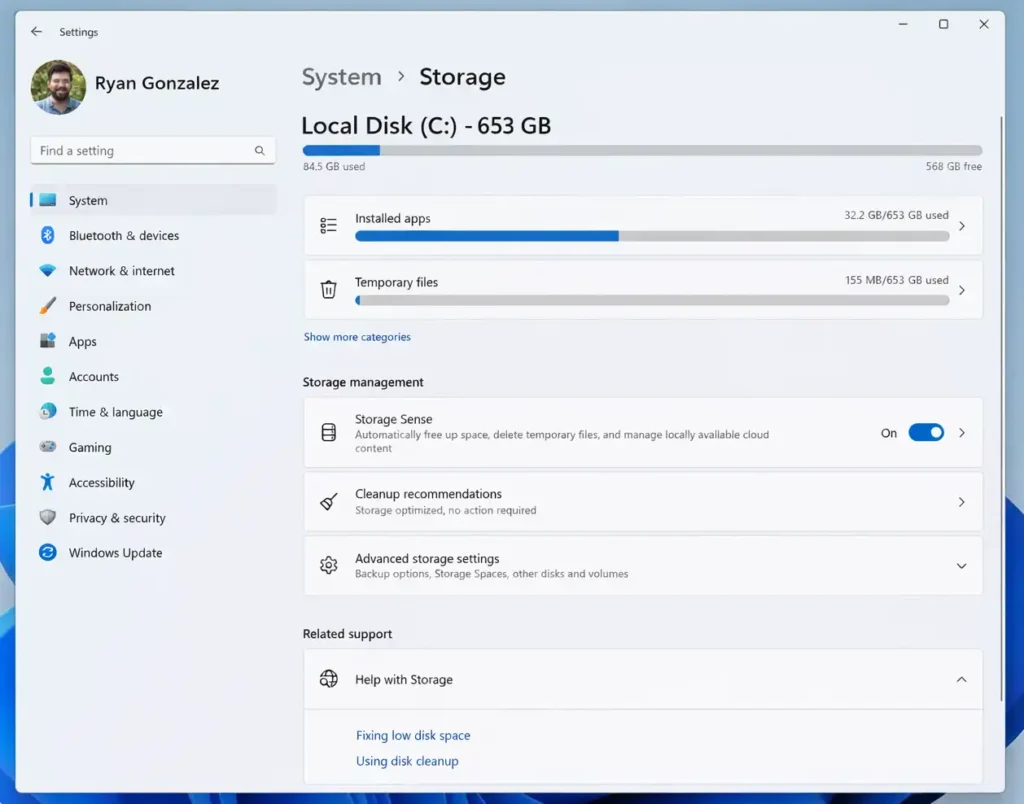
Windows includes a built-in storage analyzer.
Steps
- Open Settings
- Navigate to:
System → Storage
- Select your main drive (usually C:)
Windows will categorize storage usage into sections such as:
- Apps
- Temporary files
- Documents
- Pictures
- Other files
This helps identify which type of data is consuming the most storage.
Method 4: Sort Files by Size in File Explorer
Another quick way to locate large files is by sorting folders by size.
Steps
- Open File Explorer
- Navigate to a folder (for example Downloads)
- Switch to Details view
- Click the Size column
Files will be sorted from largest to smallest, making it easy to identify large files quickly.
This method works best when checking folders that commonly store large files.
How to Find Large Folders on Your PC
Sometimes the problem is not a single file but an entire folder containing many files.
Examples include:
- Steam game libraries
- backup folders
- video editing projects
- virtual machine disk images
Disk analyzer tools help identify large folders consuming dozens of gigabytes.
Comparison of Popular Disk Analyzer Tools
| Tool | Speed | Best For |
|---|---|---|
| WizTree | Extremely fast | Finding huge files instantly |
| WinDirStat | Moderate | Visual disk usage maps |
| TreeSize Free | Fast | Identifying large folders |
Each tool helps identify hidden storage hogs quickly.
Real Examples of Hidden Disk Space Hogs
Many users discover surprising files during disk scans.
Example scenarios include:
Example 1
A forgotten Windows ISO file (6GB) stored in the Downloads folder.
Example 2
A Steam game installation exceeding 70GB.
Example 3
Multiple backup archives stored on the Desktop.
Disk analyzer tools reveal these files instantly.
Files That Commonly Eat Disk Space
The files that typically consume the most storage include:
- video files
- ISO disk images
- game installations
- backup archives
- virtual machine files
Some of these files can exceed 10–50GB each.
Safe to Delete vs Dangerous to Delete
When cleaning up disk space, remove only safe files.
Usually Safe to Delete
- old downloads
- video files
- installers and setup files
- ZIP archives
- temporary files
Avoid Deleting
- Windows folder
- System32
- Program Files
- pagefile.sys
- hiberfil.sys
Deleting system files can cause serious system problems.
Advanced Method: Find Large Files Using Command Prompt
Advanced users can list large files using Command Prompt.
dir /s /w /o:-s
This command lists files sorted by size.
Advanced Method: Find Large Files Using PowerShell
PowerShell can also identify large files.
Get-ChildItem C:\ -Recurse | Sort Length -Descending | Select -First 20
This command displays the 20 largest files on the drive.
Bonus: Automatically Free Disk Space Using Storage Sense
Windows includes a feature called Storage Sense.
Enable Storage Sense
- Open Settings
- Go to:
System → Storage
- Turn on Storage Sense
It automatically removes:
- temporary files
- recycle bin items
- old downloads
This prevents your drive from filling up again.
5-Minute Workflow to Recover Disk Space
If your PC is running out of storage, follow this quick process.
Step 1
Scan your drive using WizTree or WinDirStat
Step 2
Identify the largest files or folders
Step 3
Delete or move unnecessary files
Step 4
Empty the Recycle Bin
Step 5
Verify recovered disk space
Many users recover 10–50GB of space within minutes.
Frequently Asked Questions
How do I find the biggest files on my PC?
Open File Explorer, go to This PC, and search using:
size:>1GB
Then sort results by Size to see the largest files on your computer.
What files usually take up the most disk space?
The files that typically consume the most storage include:
- video files
- ISO disk images
- game installations
- backup archives
- virtual machine files
What is the fastest way to find large files on Windows?
The fastest method is using WizTree, which scans drives in seconds and instantly shows the largest files and folders.
Other Helpful Windows Guide
- Computer Suddenly Slow? 10 Proven Ways to Speed Up Windows 10 & 11
- Recover Important Files Before Cleaning Up Your Drive
- Windows 11 Survival Guide: 7 Essential Tweaks for Every New User
- How to Remove the Recommended Section from Windows 11 Start Menu
Final Thoughts
If your PC suddenly runs out of storage, the cause is usually a few large hidden files or folders.
The fastest ways to locate them include:
- File Explorer size filters
- disk analyzer tools like WizTree or WinDirStat
- Windows Storage settings
- sorting folders by file size
Once you locate the largest files, removing unnecessary ones can quickly recover valuable disk space and improve system performance.