We have all been there. You are deep in the “flow state,” crushing a project or organizing a massive travel itinerary. You find that perfect link, hit Ctrl + C, and move to the next tab. Then, muscle memory kicks in. You see a cool quote, hit Ctrl + C again—and your heart sinks.
That vital link you just spent ten minutes hunting for? It’s gone. Replaced by a three-word quote.
In the tech world, we call this the “Clipboard Trap.” For decades, Windows has operated on a “one-in, one-out” policy. No history. No backup. Just the last thing you copied.
The good news? You don’t have to work like this anymore.
There’s a built-in Windows feature that completely changes how copy-paste works. It’s called Clipboard History, and once you start using it, you’ll wonder how you ever worked without it.
The Problem: Why Standard Copy-Paste Slows You Down
The traditional clipboard is volatile. It only remembers one item at a time.
This creates unnecessary context switching:
- Copy item 1 → Switch → Paste
- Switch back → Copy item 2 → Switch → Paste
- Repeat again and again
Every switch breaks focus. It might feel small, but over weeks and months, those micro-interruptions add up.
If you regularly:
- Research online
- Write reports
- Move data between apps
- Work with code or spreadsheets
…you’re losing time without realizing it.
The Solution: Meet Your New Best Friend, Win + V
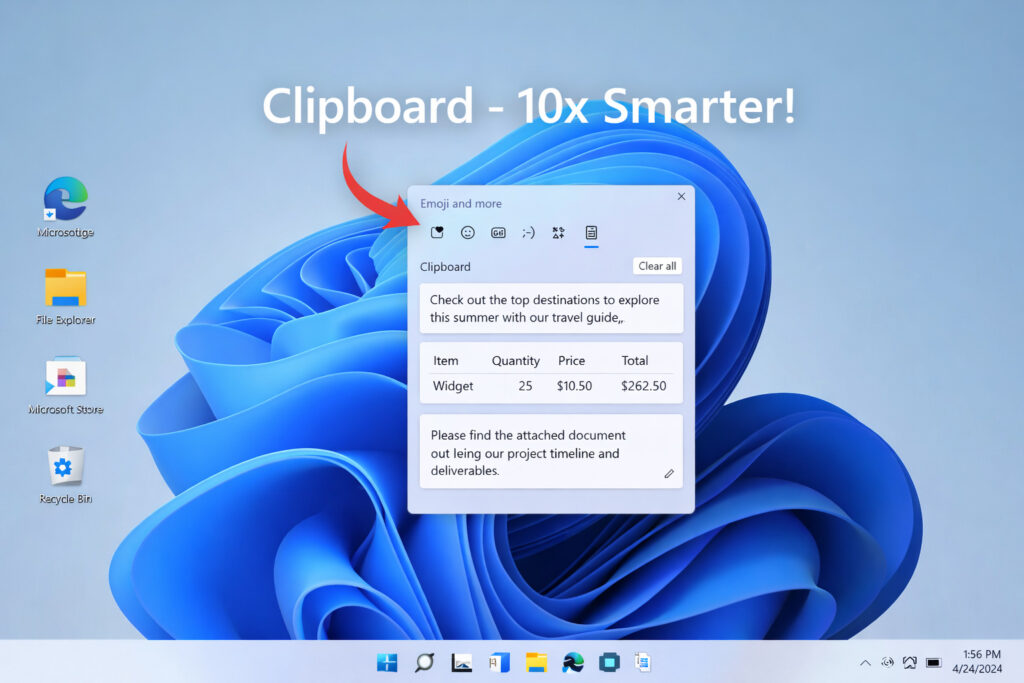
Windows includes a built-in clipboard history feature that stores the last 25 copied items.
This includes:
- Plain text
- Formatted links
- HTML snippets
- Images and screenshots
- Emojis
Instead of remembering just one item, Windows keeps a rolling list.
And it’s built in. No third-party tools required.
How to Turn It On (Takes 3 Seconds)
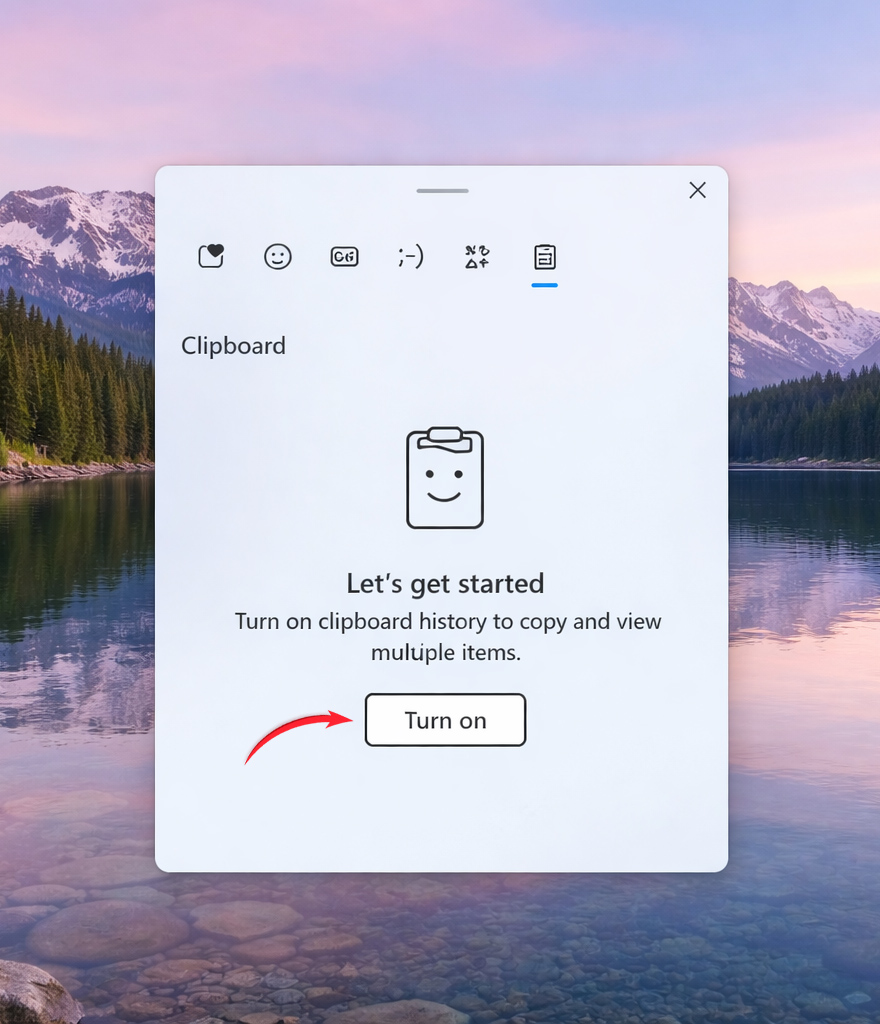
- Press Windows Key + V
- A small panel appears
- Click Turn On
That’s it.
From that moment on, every time you press Ctrl + C, Windows saves it to a scrollable history list.
The Pro Tip!
Most users treat Win + V as a backup tool.
But here’s the smarter workflow trick.
The “Reloading” Method
Let’s say you copied five different pieces of text and need to reuse them repeatedly.
- Press Win + V
- Click the item you want
- It pastes — and becomes your active clipboard again!
Now you can press Ctrl + V repeatedly without reopening history.
If you want a different item, press Win + V once, select it, and it becomes your new default.
For repetitive tasks, documentation, coding, or data entry — this is dramatically faster.
Keeping Important Items: Use the Pin Feature
If you have text you reuse often — like:
- A Zoom meeting link
- Your email signature
- A bio
- Brand hex codes
Copy it once.
Then:
- Press Win + V
- Find the item
- Click the Pin icon
Pinned items stay in your clipboard history even after restart.
It turns your clipboard into a mini quick-access vault.
What About Privacy?
Good question.
- Clipboard history is stored locally on your device.
- You can clear everything instantly using “Clear All.”
- Unpinned items are removed when history is cleared.
If you copy something sensitive, just open Win + V and delete it manually.
Quick Reference Cheat Sheet
| Action | Shortcut | Why It’s Better |
| Normal Copy | Ctrl + C | Standard and fast |
| Open History | Win + V | See last 25 copied items |
| Paste Old Item | Click from list | Reactivates it for repeated pasting |
| Pin Item | Pin icon | Keeps it available after restart |
| Clear History | Clear All | Removes stored clipboard data |
Useful Windows Guides
- Remove the Recommended Section from the Start Menu
https://moderntechdigest.com/remove-the-recommended-section-start-menu/ - Speed Up Windows 10 and 11 (Proven Fixes)
https://moderntechdigest.com/speed-up-windows-10-and-11/ - Restore the Classic Right-Click Menu in Windows 11
https://moderntechdigest.com/restore-the-classic-right-click-menu/ - Move the Windows 11 Start Menu to the Left
https://moderntechdigest.com/windows-11-start-menu-move-to-the-left/
Final Thoughts
The best upgrades aren’t expensive hardware changes.
They’re small workflow improvements that remove friction from your day.
Clipboard History is one of those features. Try it for one afternoon.
By the third time it saves you from reopening a lost tab, it’ll become second nature.