
If your “This PC” icon is missing from the desktop in Windows 11, you can restore it quickly:
Right-click on the desktop → Click Personalize → Go to Themes → Click Desktop icon settings → Check Computer (This PC) → Click Apply.
Why Is the “This PC” Icon Missing?
The This PC icon may disappear due to:
- Windows update or reset
- New user profile
- Desktop icons being hidden
- Default Windows settings
Method 1: Add “This PC” Icon from Settings
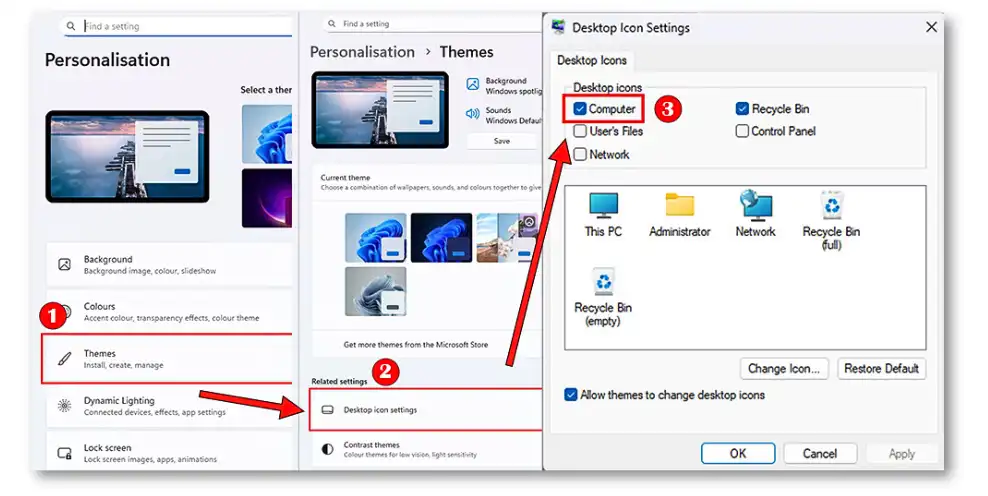
This PC icon missing Windows 11
Here’s the same method explained step-by-step:
- Right-click on the desktop
- Select Personalize
- Click Themes
- Open Desktop icon settings
- Check Computer (This PC)
- Click Apply → OK
👉 This is the official way to show the “This PC / My Computer” icon in Windows 11.
Method 2: Enable “Show Desktop Icons” (Important Fix)
If the icon is still missing:
- Right-click on the desktop
- Click View
- Enable Show desktop icons
👉 This fixes cases where desktop icons are hidden.
Method 3: Create “This PC” Desktop Shortcut Manually
- Open File Explorer
- Right-click This PC from the left sidebar
- Click Show more options → Send to → Desktop (create shortcut)
👉 Useful if desktop icon settings are not working.
Windows 10: Show “My Computer” Icon
Steps are similar:
- Right-click desktop → Personalize
- Go to Themes → Desktop icon settings
- Check Computer → Click Apply
FAQs
How do I fix missing This PC icon in Windows 11?
Use Desktop icon settings or enable Show desktop icons from the right-click menu.
Is “This PC” the same as “My Computer”?
Yes, “This PC” is the updated name for “My Computer” in Windows 10 and 11.
Why did my desktop icons disappear?
Desktop icons may be hidden if “Show desktop icons” is turned off or after a Windows update/reset.
Can I pin “This PC” to taskbar?
You can pin it to Quick Access in File Explorer, but pinning directly to the taskbar requires a workaround.
Great tips for a person who is not that much well versed with intricacies of windows.