Introduction
Microsoft released the Windows 11 cumulative update KB5077181 as part of the February 2026 Patch Tuesday. It was intended to improve security, stability, and system performance.
However, many users reported problems after installing it — including internet failures, Bluetooth issues, freezes, and installation errors.
If your PC started misbehaving after this update, don’t panic. This guide explains:
- What KB5077181 was supposed to do
- What problems users actually faced
- Practical fixes that really work
- Step-by-step repair instructions anyone can follow
What KB5077181 Was Meant To Do
KB5077181 is a security and reliability cumulative update for Windows 11.
Intended improvements
- Security vulnerability patches
- System reliability fixes
- GPU stability improvements (including black-screen fixes)
- Networking improvements
- Minor Start menu and internal system updates
Because it’s a mandatory security update, Windows may install it automatically.
Problems Reported After Installing KB5077181
1. Update Failed To Install
Many users saw errors such as:
- 0x800F0922
- 0x800F0991
- 0x80073712
- “Update failed — undoing changes”
Some PCs repeatedly tried installing the update and failed each time.
2. Internet Not Working (Very Common)
After restart:
- Wi-Fi shows connected but no internet
- Ethernet connection also affected
- PC unable to obtain IP address
In many cases, uninstalling the update restored internet immediately.
3. Bluetooth Devices Missing
Users reported:
- Bluetooth toggle disappeared
- Mouse or headphones stopped connecting
- Driver reinstall didn’t help
A full power reset or removing the update solved this for many.
4. Boot Loop or Login Failure
Some systems:
- Restart continuously
- Freeze before reaching desktop
- Show black screen or service errors
This requires using Windows Recovery Mode.
5. Gaming Freezes or GPU Problems
Especially on gaming laptops:
- Black screen during games
- External monitor not detected
- System freezing at login
Practical Fixes That Actually Work
Try these solutions in order.
FIX 1 — Restart and Perform a Full Power Reset
This simple method fixed Bluetooth and network issues for many users.
Steps
- Shut down your PC completely
- Unplug power cable
- Laptop: hold power button for 20–30 seconds
- Wait 2–5 minutes
- Turn the PC back on
Check if the issue is resolved.
FIX 2 — Uninstall KB5077181 (Most Reliable Solution)
Method A — If Windows Opens Normally
- Open Settings
- Go to Windows Update
- Click Update history
- Select Uninstall updates
- Find KB5077181
- Click Uninstall
- Restart PC
After restart, pause updates for a week or two.
Method B — If PC Is Stuck in Boot Loop
- Force shutdown PC during boot three times
- Windows opens Recovery Mode
- Select Troubleshoot
- Click Advanced options
- Choose Uninstall Updates
- Select Uninstall latest quality update
Restart PC.
FIX 3 — Repair Windows System Files
Use this if installation fails or system behaves strangely.
Steps
- Search Command Prompt
- Right-click → Run as administrator
- Run:
DISM /Online /Cleanup-Image /RestoreHealth- After it finishes, run:
sfc /scannow- Restart PC
FIX 4 — Reset Network Settings (For Internet Issues)
- Open Settings
- Go to Network & Internet
- Click Advanced network settings
- Select Network reset
- Confirm and restart PC
Reconnect your Wi-Fi afterward.
FIX 5 — Reinstall Drivers (For GPU or Bluetooth Problems)
- Right-click Start
- Open Device Manager
- Expand:
- Display adapters
- Bluetooth
- Network adapters
- Right-click device → Uninstall device
- Restart PC
Windows will reinstall drivers automatically.
FIX 6 — Perform an In-Place Windows Repair (Last Resort)
Use only if:
- System keeps freezing
- Update corrupted Windows
- Other fixes didn’t work
Steps
- Download Windows 11 ISO from Microsoft website
- Double-click ISO file
- Run Setup.exe
- Choose Keep personal files and apps
- Complete installation
This repairs Windows without deleting your data.
Should You Install KB5077181 Now?
Install if
- Your PC already updated and stable
- You need latest security protections
Wait if
- Update hasn’t installed yet
- Your system is currently working fine
- You rely on stable gaming or network performance
Waiting for Microsoft’s revised patch may be safer.
Final Verdict
KB5077181 was meant to improve Windows 11 security and stability, but on some PCs it caused installation failures, internet loss, Bluetooth issues, freezes, and boot problems.
The most effective solution right now is uninstalling the update, followed by repairing system files if needed.
If your PC works normally, keep the update.
If problems began immediately after installing it, remove it first — that fixes most cases.
FAQ
What is KB5077181 in Windows 11?
It is a February 2026 cumulative security update designed to improve system stability and protection.
Can I safely uninstall KB5077181?
Yes. Removing it will not harm your system and often fixes problems caused by the update.
Will Windows reinstall KB5077181 automatically?
Yes, unless you pause updates temporarily in Windows Update settings.
How do I know if KB5077181 is installed?
Go to Settings → Windows Update → Update history and look for KB5077181 in the list.
Helpful Windows 11 Tips
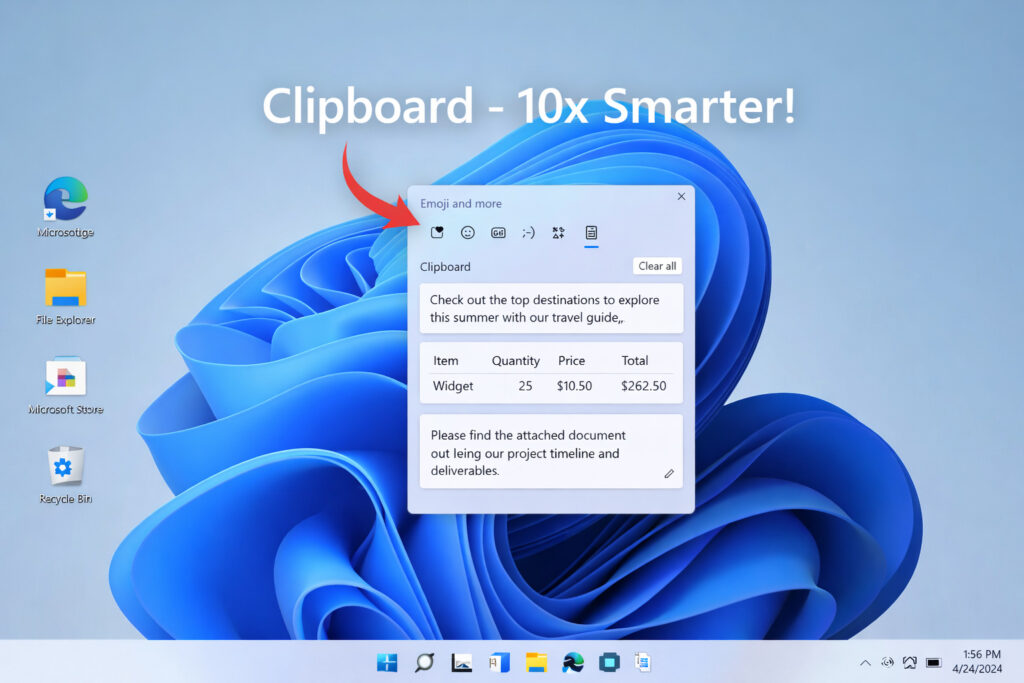
- Windows 11 Clipboard History: How to Enable and Use It
https://moderntechdigest.com/windows-11-clipboard-history/ - Move the Windows 11 Start Menu to the Left
https://moderntechdigest.com/windows-11-start-menu-move-to-the-left/ - Remove the Recommended Section from the Start Menu
https://moderntechdigest.com/remove-the-recommended-section-start-menu/ - Restore the Classic Right-Click Menu in Windows 11
https://moderntechdigest.com/restore-the-classic-right-click-menu/ - Speed Up Windows 10 and 11 (Proven Fixes)
https://moderntechdigest.com/speed-up-windows-10-and-11/