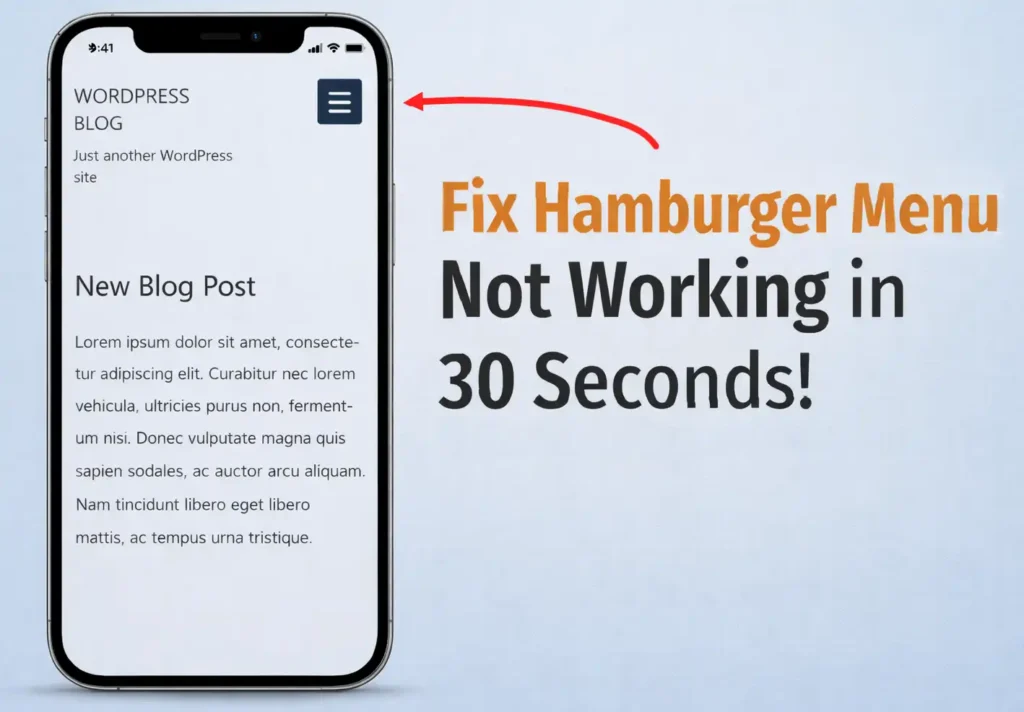
If your WordPress mobile hamburger menu is not working, the quickest fix is clearing Elementor’s cached files.
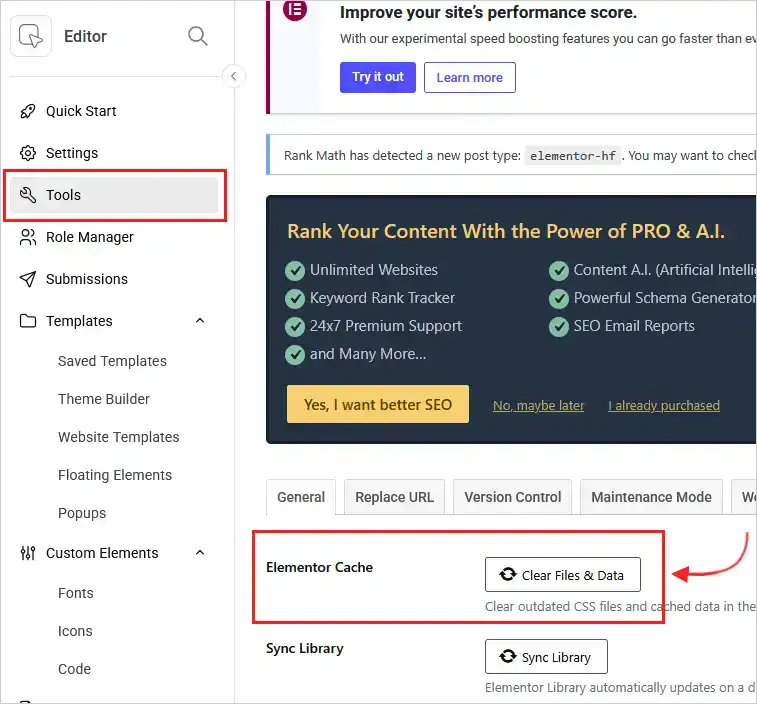
Go to Elementor → Go to site setup→ Tools → Elementor Cache → Clear Files and Data. This refreshes Elementor’s assets and usually restores the mobile menu instantly.
The quickest fix is to clear Elementor’s cached files and data.
This takes less than 30 seconds and usually restores the mobile menu instantly.
Quick Answer
If your Elementor mobile menu is not working, follow these steps:
- Go to Elementor in your WordPress dashboard
- Click Go to site setup in the top-right corner
- In the left panel, click Tools
- Under the General tab, find Elementor Cache
- Click Clear Files and Data
- Refresh your site on mobile
This clears outdated Elementor cache files and usually fixes the mobile menu immediately.
When Does This Problem Usually Happen?
Many WordPress users run into this issue after:
- Updating Elementor
- Updating the theme
- Installing a cache plugin
- Migrating the website to a new host
- Making layout changes in Elementor
The site may look perfectly fine on desktop, but on mobile the menu icon becomes unresponsive.
If this sounds familiar, you’re not alone. It’s actually one of the most common Elementor glitches.
How to Fix the Elementor Mobile Menu Not Working
Let’s go step-by-step.
Step 1: Open Elementor Settings
First, log in to your WordPress Dashboard.
Then go to Elementor.
In the top-right corner, click:
Go to site setup
This opens Elementor’s configuration panel.
Step 2: Open the Tools Section
Inside the left-side panel, scroll until you find:
Tools
Click it.
The Tools section contains maintenance options that help resolve Elementor issues.
Step 3: Clear Elementor Cache Files
Under the General tab, locate the section called:
Elementor Cache
Now click:
Clear Files and Data
Done!
Elementor will remove outdated cached files and regenerate fresh assets for your website.
This small step often fixes issues like:
- Mobile menu not opening
- Hamburger icon not responding
- Layout glitches after updates
- Missing Elementor styling
Step 4: Refresh Your Website
After clearing Elementor cache, refresh your website and test the mobile menu again.
If your site uses caching plugins or a CDN, you may also want to clear those caches.
For example:
- LiteSpeed Cache
- WP Rocket
- W3 Total Cache
- Cloudflare cache
Then open your site on mobile or use incognito mode to verify the fix.
Why This Fix Works
Elementor stores cached files to improve website performance.
These files help pages load faster because Elementor doesn’t need to rebuild assets every time someone visits your site.
However, after updates or layout changes these files can become:
- outdated
- corrupted
- mismatched with Elementor scripts
When that happens, interactive elements like the mobile navigation menu stop responding.
Clearing Elementor cache forces the plugin to generate fresh files, which restores proper functionality.
If the WordPress Mobile Menu Still Doesn’t Work
In rare cases, the problem might be something else. Here are a few quick things worth checking.
Update Elementor
Make sure both plugins are updated:
- Elementor
- Elementor Pro (if installed)
Running mismatched versions can sometimes break mobile scripts.
Check Plugin Conflicts
Some optimization or security plugins block JavaScript files.
Try temporarily disabling recently installed plugins and test the menu again.
Check Theme Compatibility
If you’re using a custom theme, make sure it supports Elementor navigation widgets properly.
Switching temporarily to Hello Elementor can help confirm whether the theme is causing the issue.
A Quick Tip to Prevent This Issue
Whenever you notice strange Elementor behavior like:
- layouts breaking
- menus not opening
- styling disappearing
Try clearing Elementor Cache (Clear Files and Data) first.
It’s one of the fastest troubleshooting fixes and solves many Elementor problems instantly.
Related Tech Guides
- Move the Windows 11 Start Menu to the Left
https://moderntechdigest.com/windows-11-start-menu-move-to-the-left/ - Windows 11 Essential Tweaks for New Users
https://moderntechdigest.com/windows-11-essential-tweaks/ - Speed Up Windows 10 and 11 (Proven Fixes)
https://moderntechdigest.com/speed-up-windows-10-and-11/ - Restore the Classic Right-Click Menu in Windows 11
https://moderntechdigest.com/restore-the-classic-right-click-menu/
Final Thoughts
If you run a tech blog like ours, you might also enjoy reading our Windows 11 essential tweaks guide for improving your PC experience.
If your WordPress mobile menu is not working, the issue is often much simpler than it looks.
In many cases, clearing Elementor’s cached files fixes the problem in under a minute.
So the next time your hamburger menu stops responding, head to Elementor’s Tools section and clear the files and data.
It’s a tiny fix — but it can save a lot of frustration.