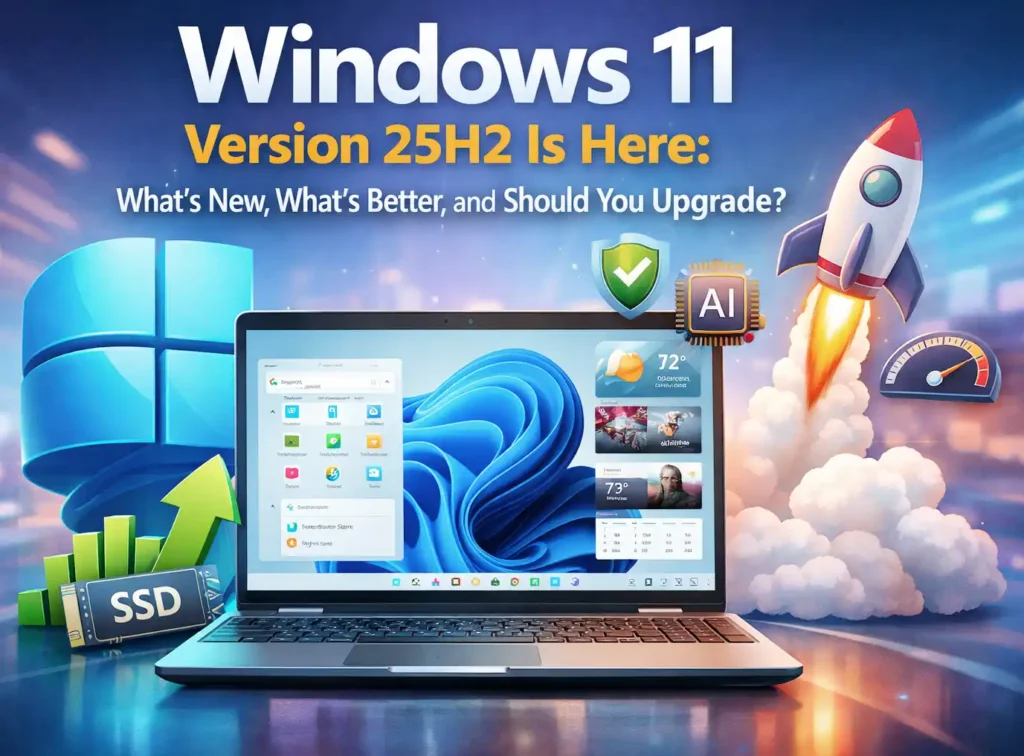
If Windows Update has recently offered you Windows 11 version 25H2, you’re probably asking the same questions many users are:
Is this a major upgrade?
Is it safe to install?
And most importantly — is it actually worth it?
The short answer: 25H2 isn’t a flashy redesign — it’s a refinement-focused update that makes Windows smarter, smoother, and more practical. It builds on the foundation of 24H2 and quietly improves the parts of the operating system you use every day.
Here’s a complete, plain-English breakdown of what’s new, what’s improved, and whether you should install it.
If you’re customizing the Windows interface after upgrading, you might want to move the Windows 11 Start menu back to the left for a more traditional layout.
What Is Windows 11 Version 25H2?
Windows 11 version 25H2 is Microsoft’s 2025 feature update for Windows 11. It’s not Windows 12, and it doesn’t radically change the interface. Instead, it enhances performance, expands AI-powered features, improves system polish, and extends support lifecycle.
If you’re already running version 24H2, upgrading to 25H2 is surprisingly quick. Microsoft delivers it as a small enablement package, meaning:
- Minimal download size
- Fast installation
- Typically just one restart
Compared to feature updates from years past, this is one of the smoothest annual upgrades Microsoft has shipped.
Why This Update Matters in 2025
Over the past few years, Windows has shifted from being just a “program launcher” to becoming a smarter workspace powered by AI and contextual actions.
Version 25H2 continues that evolution with:
- Built-in AI tools for images and documents
- Smarter contextual right-click actions
- More useful widgets
- Better system reliability
- Stronger security protections
It’s less about dramatic visual changes — and more about removing friction from daily tasks.
AI Features That Actually Make a Difference
One of the most practical aspects of Windows 11 25H2 is how AI is now woven directly into everyday workflows.
These aren’t experimental lab features — they’re tools normal users can benefit from immediately.
AI Image Editing: A Big Win for Social Media Users
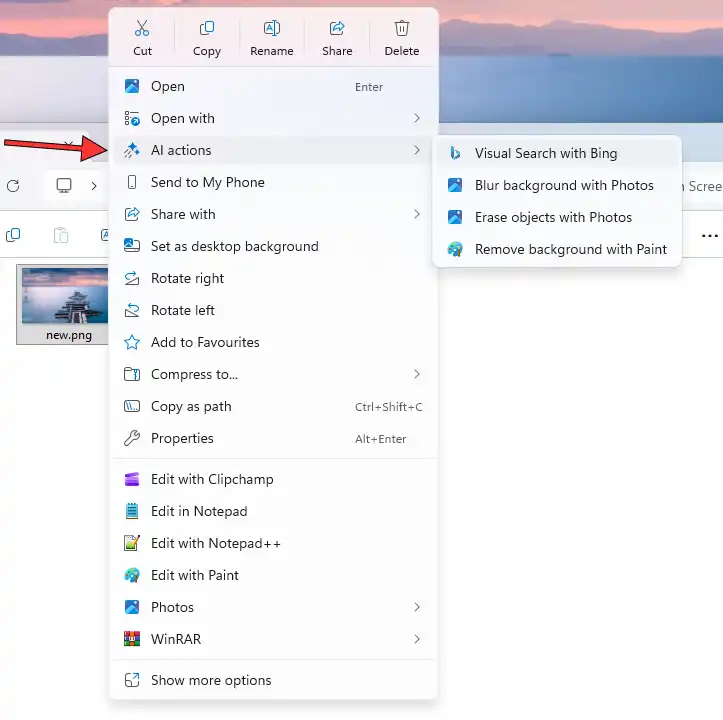
You no longer need complex software like Photoshop for basic image improvements. Windows now integrates AI-powered actions directly into your file experience.
Remove Background Instantly
Right-click an image and remove its background in seconds.
This is incredibly useful for:
- Instagram posts
- Online marketplace listings
- YouTube thumbnails
- Profile photos
- Small business product shots
Instead of opening a heavy editing program, you can isolate a subject almost instantly.
Automatic Background Blur
Want a portrait-mode effect? Windows can intelligently blur backgrounds while keeping the subject sharp.
For LinkedIn headshots, travel photos, or even casual selfies, this adds a professional touch with zero editing knowledge required.
Remove Unwanted Objects
Got a photobomber? Random clutter in the background? AI can remove small unwanted elements cleanly.
For content creators and small business owners, this eliminates the need for advanced editing tools for simple fixes.
Visual Search
Right-click → search visually.
You can:
- Identify objects in a photo
- Find similar products
- Discover image sources
- Verify originality
For researchers, bloggers, and online sellers, this is a practical addition.
AI-Powered Document Summaries
Beyond photos, Windows 11 25H2 introduces AI-driven document summaries for supported cloud-based files.
Right-click a document and generate a concise overview before reading the full file.
This is particularly helpful for:
- Students reviewing long PDFs
- Professionals scanning reports
- Writers conducting research
Instead of immediately diving into 20 pages of content, you get a quick understanding first.
It doesn’t replace reading — but it dramatically reduces the time spent skimming.
Widgets Get More Practical
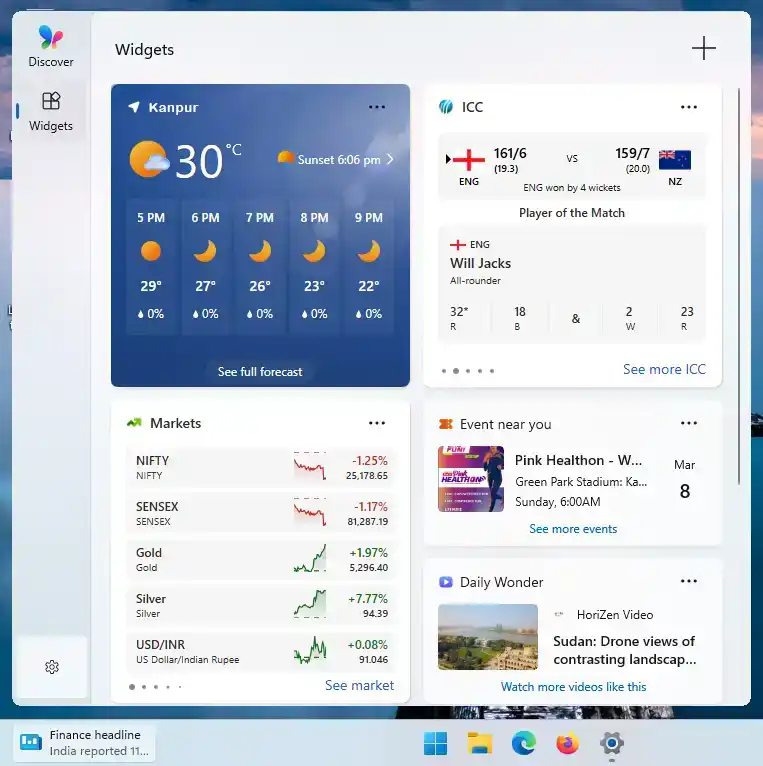
Widgets have existed in Windows 11 for some time, but 25H2 makes them far more usable.
The layout feels cleaner and less cluttered. Information is easier to scan, and organization options have improved.
You can now create multiple boards — for example:
- A Work dashboard (Calendar, Tasks, Email updates)
- A Personal board (Weather, Photos, News)
- A Finance board (Stocks, Market updates)
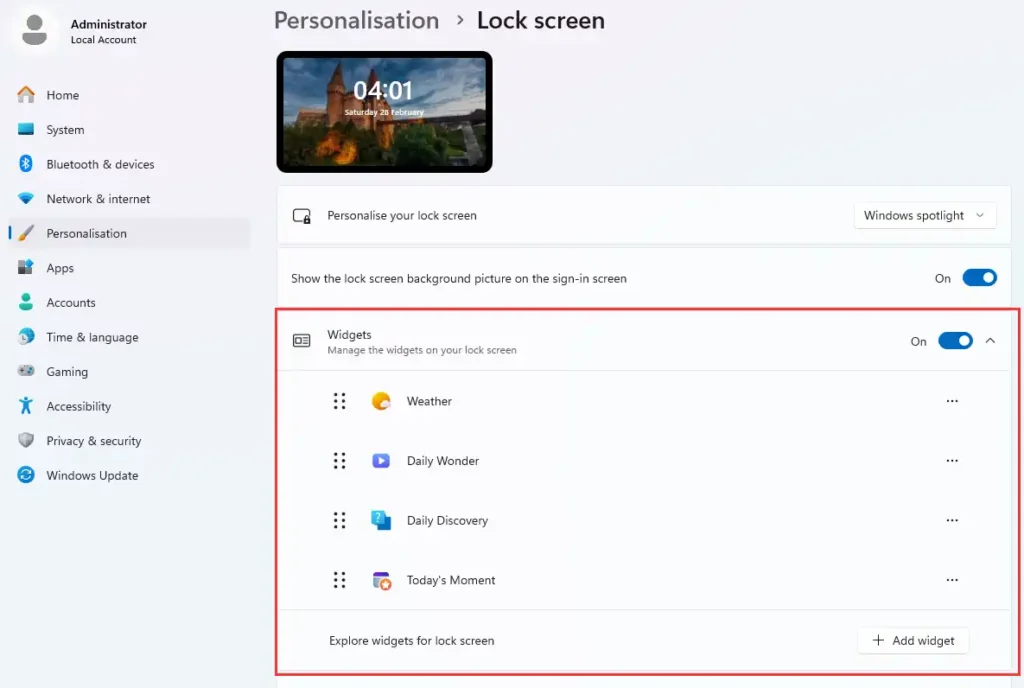
Widgets can also appear on the lock screen, letting you check weather or reminders without signing in.
The result? Instead of opening multiple apps, you get a glanceable dashboard that reduces app switching and saves time.
How to Customize Widgets
Personalizing Widgets is simple:
- Press Win + W or click the Widgets icon
- Add new widgets using the “+” button
- Remove unwanted ones via the three-dot menu
- Drag and rearrange for preferred layout
- Adjust lock screen widgets via Settings → Personalization
Keeping 4–6 essential widgets active usually delivers the best experience.
Improvements for Power Users and Developers
While everyday users benefit from AI tools and widgets, 25H2 also refines deeper system tools.
Task Manager continues to mature, with clearer process grouping and easier-to-read resource usage indicators. If your PC slows down, identifying the responsible app is faster and more intuitive.
Microsoft has also expanded Advanced Settings, giving developers and technical users easier access to system-level toggles without relying heavily on registry edits or command-line workarounds.
A lightweight editing experience, often referred to as Microsoft Edit, makes quick script or configuration edits easier without launching heavy development environments.
Collectively, these refinements make Windows feel more cohesive and better suited for both casual and professional use.
Click-to-Do and Contextual Improvements
One subtle but meaningful improvement is how Windows handles contextual actions.
Previously, performing a task often required:
Copy → Open another app → Paste → Edit → Save
Now, many actions can be performed directly from right-click menus or contextual prompts.
This reduces:
- App switching
- Extra clicks
- Workflow interruptions
The improvement may seem small, but over time it significantly streamlines productivity.
Security, Stability, and System Polish
Security remains a central focus in Windows 11 25H2.
This update strengthens:
- App protections
- Account sign-in flows
- Core OS defenses
- Vulnerability mitigation
It also improves hardware compatibility and driver stability, resulting in fewer unexpected crashes and better sleep/resume reliability.
Unlike earlier years where feature updates sometimes introduced instability, 25H2 feels more like a stabilization release — refining what already works.
Faster, Easier Upgrade Process
One of the most practical improvements isn’t a feature at all — it’s the upgrade experience itself.
If you’re on 24H2:
- The download is small
- Installation is fast
- Only one restart is typically required
This makes it one of the least disruptive annual Windows updates in recent memory.
Potential Drawbacks
No update is perfect, and 25H2 is no exception.
Keep in mind:
- Some AI features may roll out gradually
- Certain tools may require internet connectivity
- Advanced AI image features may perform best on newer hardware
- Enterprise environments may delay deployment
If your system is mission-critical, waiting a few weeks after release is always a cautious strategy.
How to Install Windows 11 25H2
Method 1: Windows Update (Recommended)
- Open Settings
- Go to Windows Update
- Click Check for updates
- Select Download & Install
- Restart when prompted
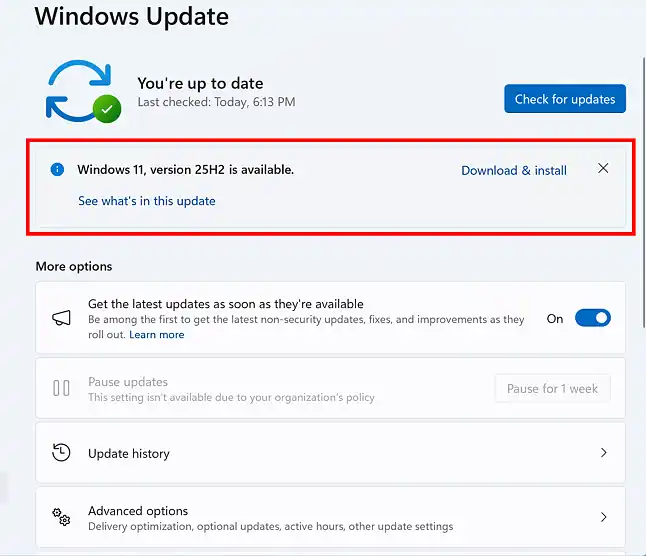
If it doesn’t appear immediately, enable “Get the latest updates as soon as they’re available.”
Method 2: Manual Upgrade
Advanced users can also use Microsoft’s Installation Assistant or ISO files to upgrade directly.
Should You Upgrade to Windows 11 25H2?
Upgrade now if:
- You’re already on 24H2
- You want the latest refinements
- You use image editing or document tools frequently
- You prefer staying on a fully supported build
Wait if:
- Your PC is part of a mission-critical workflow
- You prefer to observe early rollout feedback
For most home users, 25H2 is a safe and worthwhile update.
If your PC becomes slow after a major Windows update, check our guide on how to speed up Windows 10 and 11.
Related Windows 11 Guides
- How to move the Windows 11 Start menu to the left
- How to restore the classic right-click menu in Windows 11
- How to remove the Recommended section from the Start menu
- Speed up Windows 10 and 11 with these fixes
Final Verdict
Windows 11 version 25H2 doesn’t reinvent the operating system — and that’s intentional.
Instead, it meaningfully improves how Windows feels to use every day.
The smarter image tools, AI-powered document summaries, refined widgets, smoother contextual actions, and painless upgrade process make it a practical step forward.
This is refinement over revolution — and in 2025, that’s exactly what Windows needs.
If your PC offers the update, you can install it confidently — just go in with the right expectations.