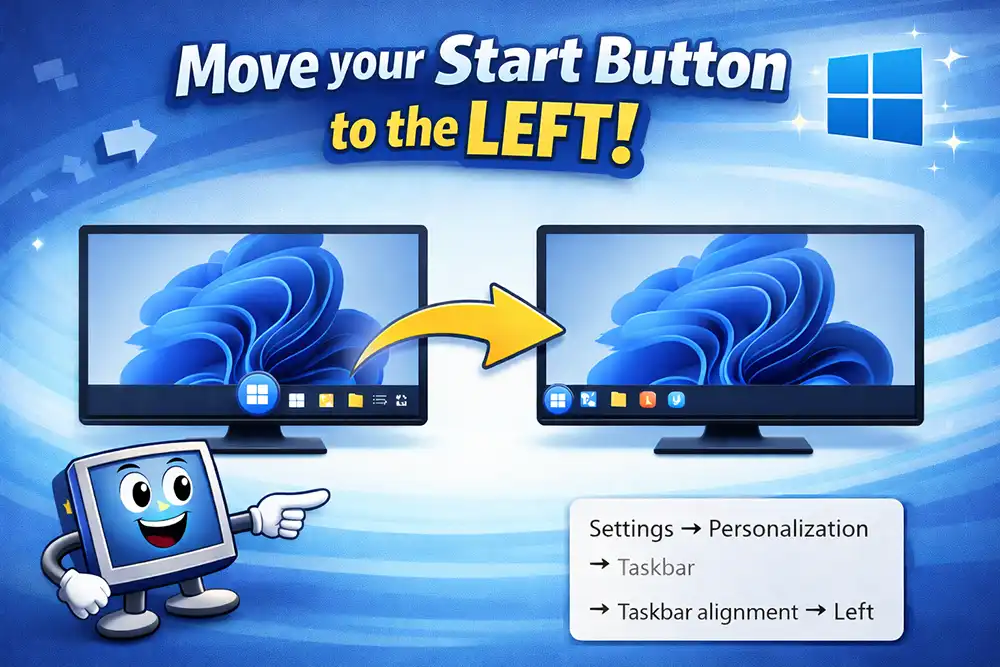
You can move the Windows 11 Start menu to the left by going to Settings → Personalization → Taskbar → Taskbar behaviors → Taskbar alignment → Left. This instantly shifts the Start button and all taskbar icons from the center back to the traditional left side.
When Microsoft introduced Windows 11, the Start menu moved to the center of the taskbar instead of staying on the left like previous Windows versions.
By default, the Windows 11 Start menu appears centered on the taskbar, unlike older Windows versions.
While the new layout looks modern, many users prefer the classic Windows interface where the Start button is on the left side.
Fortunately, Windows 11 still allows you to move the Start menu back to the left in just a few seconds using taskbar settings.
In this guide, you’ll learn:
- How to move the Windows 11 Start menu to the left
- Where to find Windows 11 Start menu settings
- What changed in the new Windows 11 Start menu
Quick Steps
If you just want the fastest way:
Settings → Personalization → Taskbar → Taskbar behaviors → Taskbar alignment → Left
How to Move the Start Menu to the Left in Windows 11
Follow these steps:
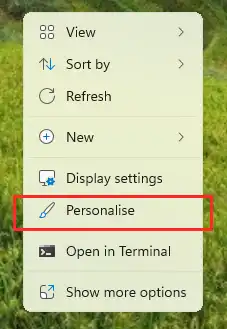
1. Right Click on Desktop
Press Windows + I to open the Settings app.
2. Go to Personalization
In the left sidebar, click Personalization.
3. Open Taskbar Settings
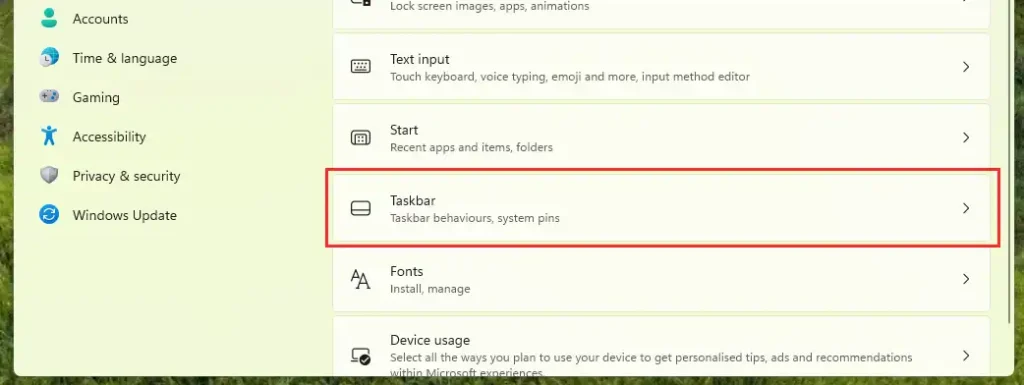
Scroll down and select Taskbar.
4. Expand Taskbar Behaviors
Click Taskbar behaviors to expand additional options.
5. Change Taskbar Alignment
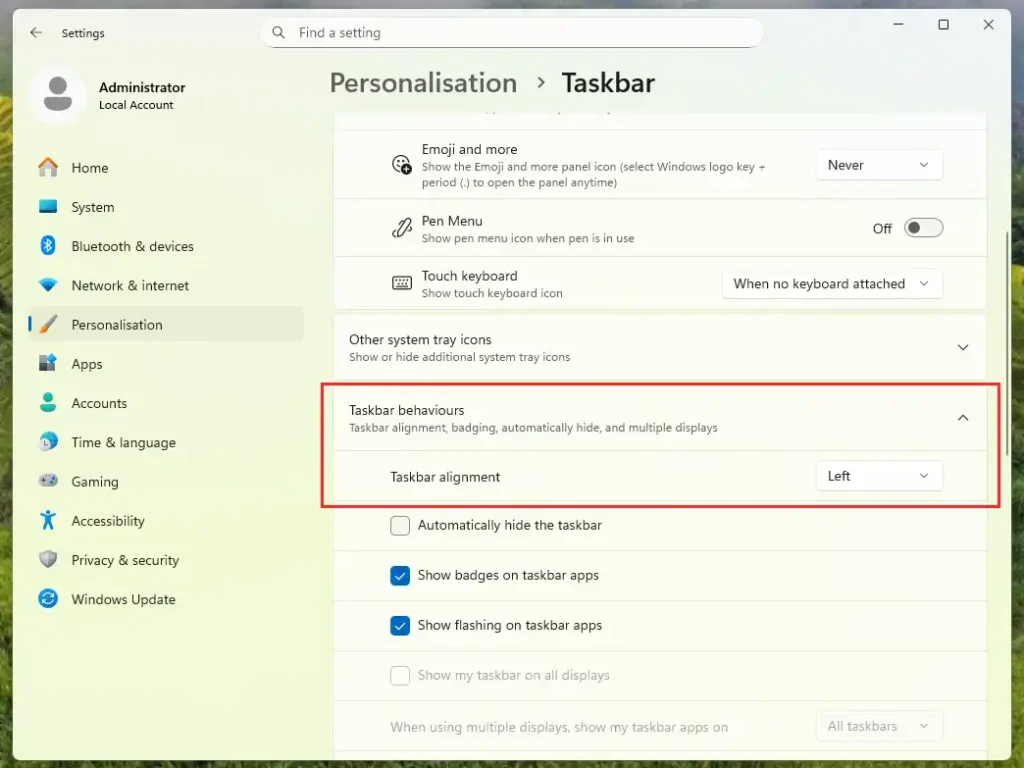
Find Taskbar alignment and select Left from the dropdown menu.
The Start menu and all taskbar icons will instantly move to the left side, similar to older versions of Windows.
Faster Method (Right-Click Shortcut)
There is an even quicker way to access this setting.
- Right-click an empty area on the taskbar
- Click Taskbar settings
- Expand Taskbar behaviors
- Change Taskbar alignment to Left
This shortcut takes you directly to the Windows 11 taskbar settings page.
Where Are the Windows 11 Start Menu Settings?
If you want to customize the Windows 11 Start menu, you can find its settings here:
Settings → Personalization → Start
From this section you can control:
• Recently added apps
• Most used apps
• Recommended files and apps
• Start menu layout
These Windows 11 Start menu settings allow you to personalize how the Start menu looks and what content appears inside it.
Why Did Windows 11 Change the Start Menu Position?
One of the biggest design changes in Windows 11 was the centered Start menu and taskbar icons.
Microsoft redesigned the interface to make Windows feel more modern and consistent with other operating systems that place icons in the center of the screen.
However, many long-time Windows users still prefer the traditional left-aligned Start menu, which is why Microsoft kept the option to move it back.
What Changed in the New Windows 11 Start Menu?
The new Windows 11 Start menu is quite different from the one in Windows 10.
Some major changes include:
• Start button centered on the taskbar
• Removal of Live Tiles
• Grid of pinned apps
• Recommended files and apps section
• Simplified and cleaner design
While some users like the modern look, others prefer the familiar layout used in previous Windows versions.
Additional Taskbar Customization Tips
While you’re adjusting the Start menu position, you can also customize other Windows 11 taskbar settings.
Inside Taskbar behaviors, you can:
• Automatically hide the taskbar
• Show badges on taskbar apps
• Control taskbar notifications
• Adjust taskbar alignment
These options allow you to further personalize the Windows 11 interface.
Can You Move the Taskbar to the Top or Side in Windows 11?
Many users also ask whether the Windows 11 taskbar can be moved to the top or sides of the screen.
Currently, Windows 11 only allows the taskbar to stay at the bottom of the screen.
The only built-in option available is changing the taskbar alignment between Center and Left.
FAQ
Can I move the Windows 11 Start menu to the left?
Yes. Simply change Taskbar alignment to Left in the taskbar settings.
Does this move all taskbar icons?
Yes. When you move the Start menu, all taskbar icons shift to the left side as well.
Does this work on all Windows 11 versions?
Yes. The option is available in Windows 11 22H2, 23H2, and newer versions.
Can I restore the old Windows 10 Start menu?
No. Windows 11 does not support the Windows 10 style Start menu, but you can move it to the left to make it feel more familiar.
Final Tip
If you’re customizing your Windows experience, you may also want to explore other useful tweaks like:
- Changing Start menu settings
- Adjusting taskbar behavior
- Personalizing the Windows interface
These small adjustments can make Windows 11 feel more comfortable and efficient to use.