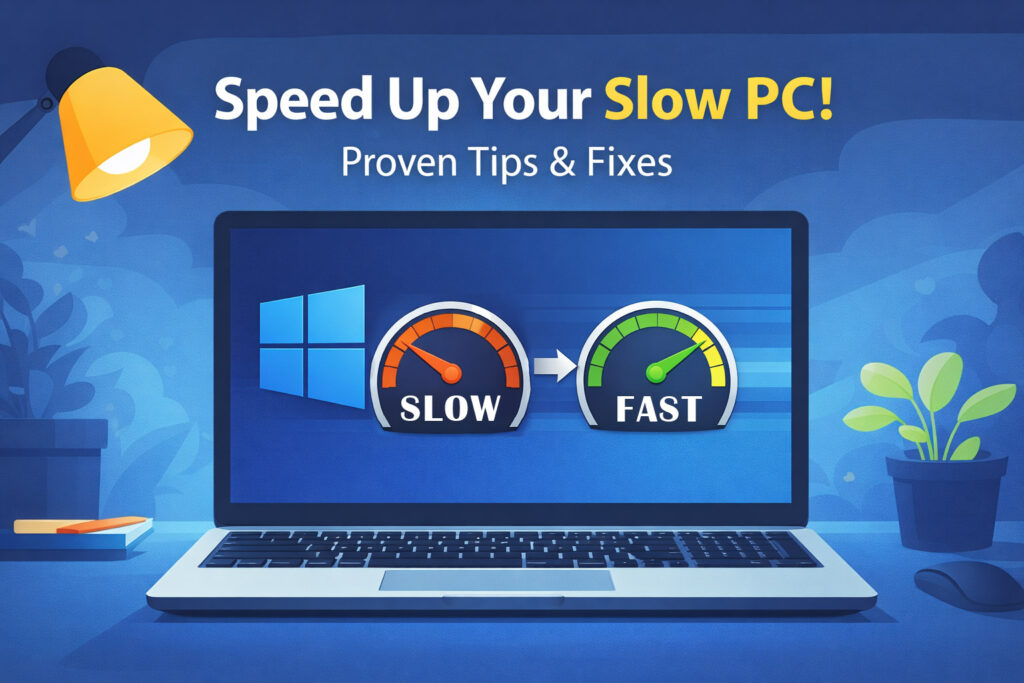
When Windows is freshly installed, everything usually feels fast and responsive – but as time passes it becomes slow. You can speed up Windows 10 or Windows 11 by freeing disk space, disabling heavy startup apps, fixing high RAM usage, stopping resource-hungry programs, and preventing CPU overheating. These simple adjustments often restore system performance without reinstalling Windows.
If you’re also customizing the Windows interface, you might want to move the Windows 11 Start menu back to the left for a more traditional layout.
Below are the real fixes that restore performance, each with easy step-by-step instructions you can follow immediately.
Quick Ways to Speed Up Windows 10 and 11
- Check disk usage and free storage space
- Stop apps using high CPU or RAM
- Disable unnecessary startup programs
- Fix virtual memory and RAM pressure
- Reduce overheating and CPU throttling
- Remove background services
1. Fix 100% Disk Usage That Slows Down Windows
If Windows runs on an HDD or the drive is overloaded, everything feels slow — boot time, apps, and file opening.
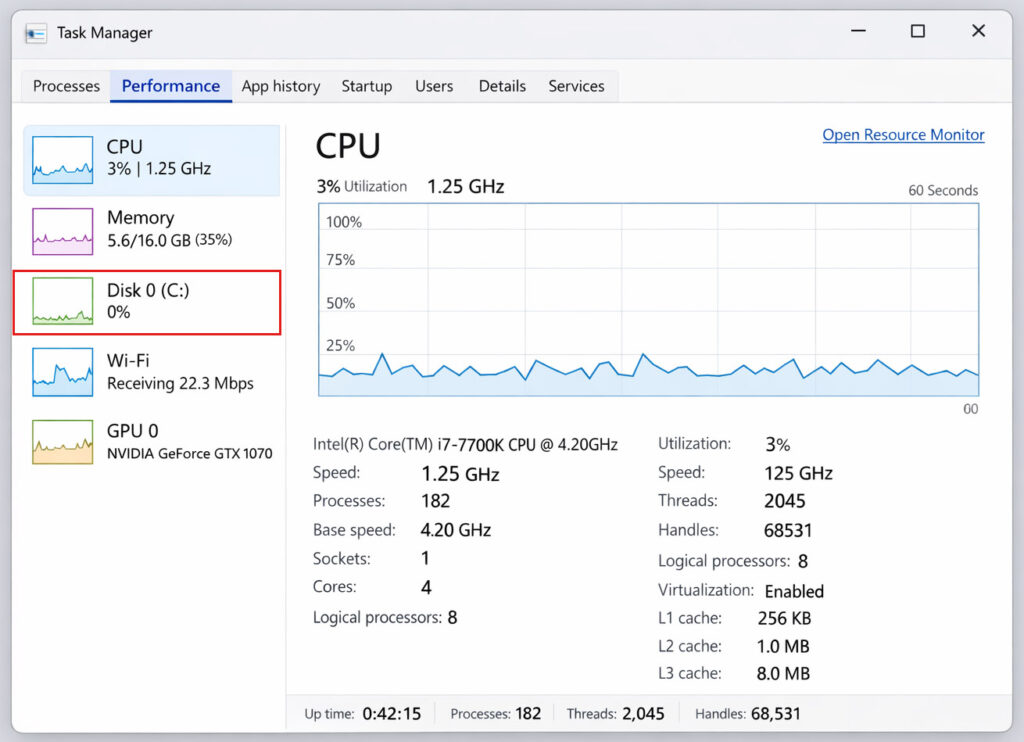
Check disk usage:
- Press Ctrl + Shift + Esc to open Task Manager
- Click Performance tab
- Select Disk
- Look at Active time
- If it often stays near 100%, the disk is the bottleneck.
Free up disk space:
- Open Settings
- Go to System → Storage
- Click Temporary files
- Select items you don’t need
- Click Remove files
Best long-term fix
If Windows is on HDD → upgrade to SSD/NVMe immediately!
This gives the biggest performance boost amongst any other upgrade.
2. Stop Apps Using Too Much CPU or RAM
Sometimes a single app causes the entire PC to slow down.
Find heavy apps:
- Press Ctrl + Shift + Esc
- Stay in Processes tab
- Click CPU, Memory, or Disk column to sort
- Look for apps using unusually high resources
Stop the problematic app:
- Click the app
- Select End task
- If the PC becomes faster, uninstall or disable that app
Common culprits include browsers with many tabs, cloud sync tools, antivirus scans, or game launchers.
3. Fix High Memory (RAM) Usage in Windows
If RAM stays full, Windows uses the disk as backup memory, which slows everything.
Check RAM usage:
- Open Task Manager
- Click Performance → Memory
- If usage is often above 80%, memory pressure exists
Disable unnecessary startup apps:
- Open Task Manager
- Go to Startup apps tab
- Right-click unwanted apps
- Click Disable
Ensure page file is automatic:
- Search Advanced system settings in Start menu
- Open it → under Performance click Settings
- Go to Advanced → Virtual memory → Change
- Tick Automatically manage paging file size
- Click OK
If RAM is 8 GB or less and multitasking is heavy, upgrading RAM can noticeably improve performance.
4. Reduce Overheating That Causes CPU Throttling
When a PC overheats, Windows automatically slows the processor to prevent damage.
Check CPU speed:
- Open Task Manager
- Click Performance → CPU
- Compare Speed with the CPU’s base speed
If the speed drops much lower during use, throttling may be happening.
Reduce overheating:
- Clean dust from vents and fans
- Place laptop on a hard flat surface (not bed or blanket)
- Ensure charger is correct wattage
- For older PCs, consider thermal paste replacement
Cooling fixes often restore lost performance immediately.
5. Disable Heavy Startup Programs and Background Services
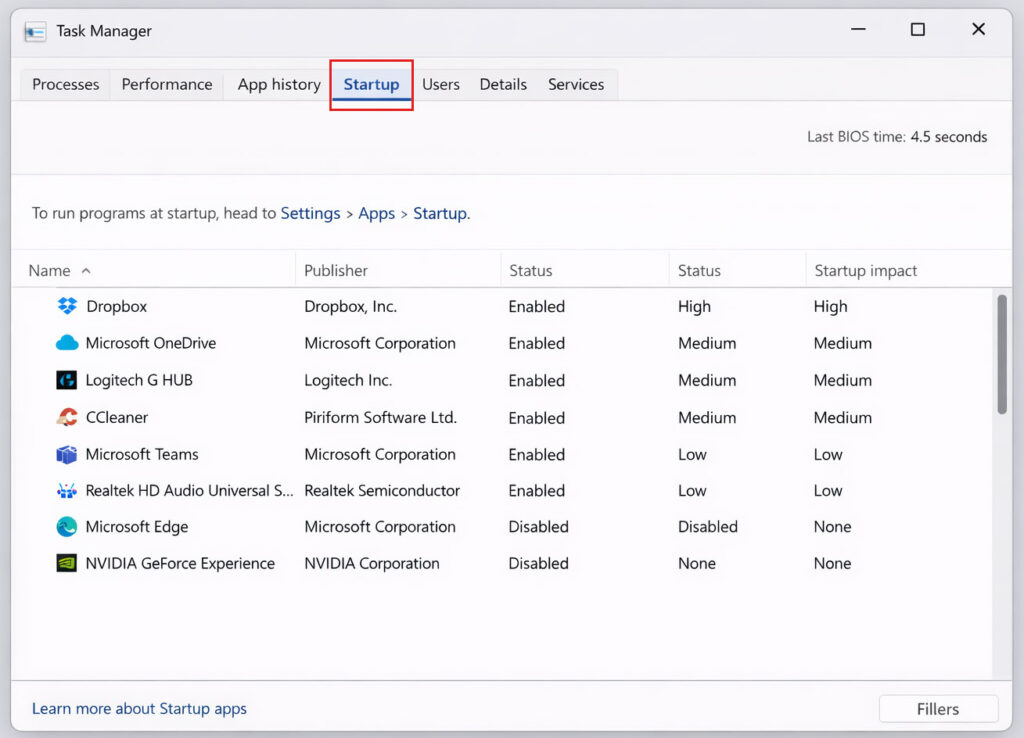
Too many startup programs keep running all day and slow the PC.
Disable startup programs:
- Open Task Manager
- Go to Startup apps
- Right-click apps you don’t need at boot
- Click Disable
Check background activity:
- Press Windows + R
- Type resmon and press Enter
- Check CPU and Disk sections
- Look for processes constantly active
If a service is stuck (like printer spooler or indexing), restarting it can restore speed.
Many users also clean up the Windows interface by removing the Recommended section from the Start menu to reduce clutter.
6. Update Important Drivers (Chipset, Graphics, Storage) & Windows for Performance Improvements
Old drivers can silently reduce performance and cause lag.
Update drivers properly:
- Identify your laptop or motherboard model
- Visit the official manufacturer website
- Download latest:
- chipset driver
- graphics driver
- storage/Intel RST driver if available
- Install and restart PC
Using official drivers instead of generic Windows ones often improves responsiveness.
7. Switch Windows to Best Performance Power Mode
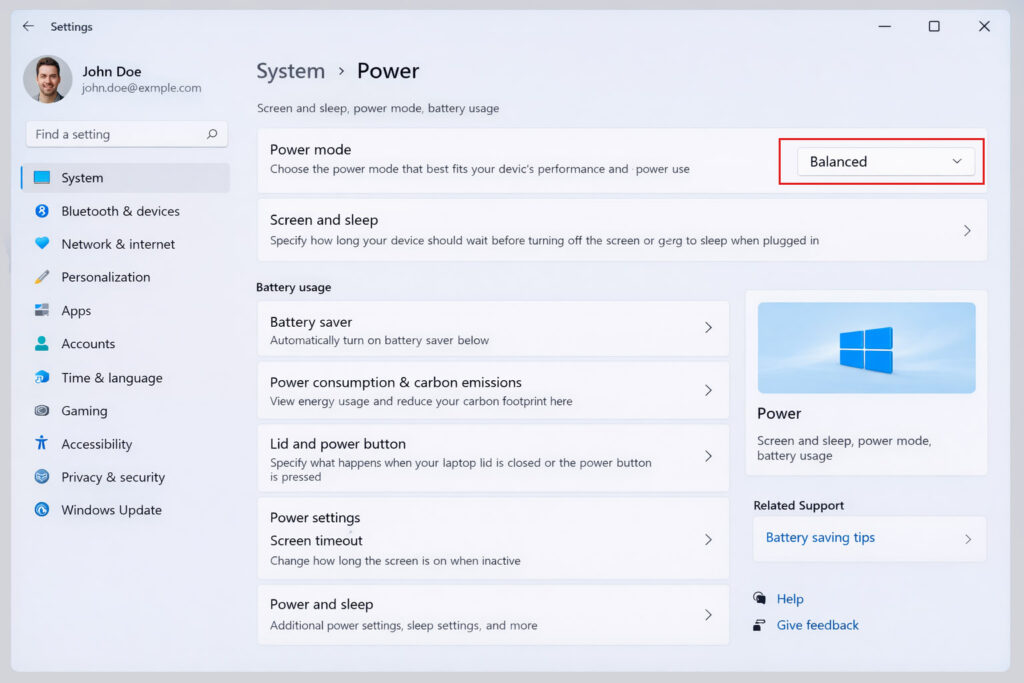
Balanced mode can slow the CPU to save power.
Change power mode:
- Open Settings
- Go to System → Power & battery
- Under Power mode, select Best performance
This gives an immediate responsiveness boost, especially on laptops.
8. Free Up Storage Space to Improve Windows Performance
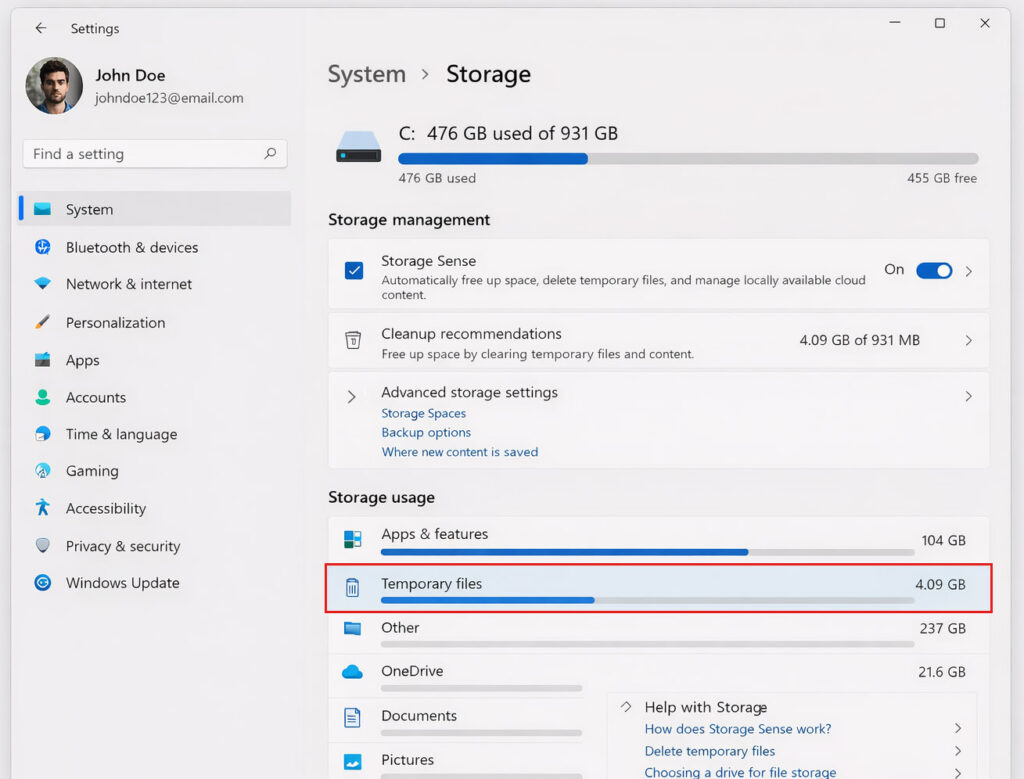
Temporary files can build up and slow system operations.
Clean temporary files:
- Open Settings → System → Storage
- Click Temporary files
- Select unwanted items
- Click Remove files
Enable automatic cleanup:
- In Storage settings, turn on Storage Sense
- Configure it to run automatically
This keeps the system clean over time.
9. Repair Windows if the PC Became Slow Suddenly
If slowdown started after updates or crashes, system files may be damaged.
Run repair commands:
- Search Command Prompt
- Right-click → Run as administrator
- Run:
sfc /scannowAfter it finishes, run:
DISM /Online /Cleanup-Image /RestoreHealthRestart the PC after completion.
If performance is still poor
Use Settings → System → Recovery → Reset this PC → Keep my files
This often restores near-fresh Windows performance.
The Fastest Way to Speed Up Windows
If your PC still uses a traditional hard drive (HDD), upgrading to a solid-state drive (SSD) can dramatically improve performance and boot times.
What Usually Makes the Biggest Difference
In real cases, most slow Windows PCs are fixed by:
- upgrading from HDD to SSD
- removing heavy background apps
- reducing RAM pressure or upgrading memory
- fixing overheating issues
- installing proper drivers
FAQ
Why is my Windows PC suddenly slow?
A Windows PC may become slow due to high disk usage, too many startup programs, low RAM, overheating, or background apps consuming system resources.
Does adding an SSD make Windows faster?
Yes. Replacing a traditional hard drive with an SSD can dramatically improve boot time and application loading speed.
How much RAM is enough for Windows 11?
For smooth performance, most users benefit from at least 8 GB of RAM, especially when multitasking with browsers and apps.
Other useful Windows 11 Tweaks
- If you’re customizing Windows further, you might also want to learn how to move the Start Menu to the left in Windows 11.
- Another popular tweak is to restore the classic right-click menu in Windows 11, which many users prefer over the new compact menu.
Final Thoughts
A slow Windows PC is rarely permanent. By checking storage, processes, memory, thermals, drivers, and system integrity in order, most systems can regain their original speed without replacing the entire computer.
Following these steps focuses on the fixes that actually work — the same method used in professional troubleshooting environments.