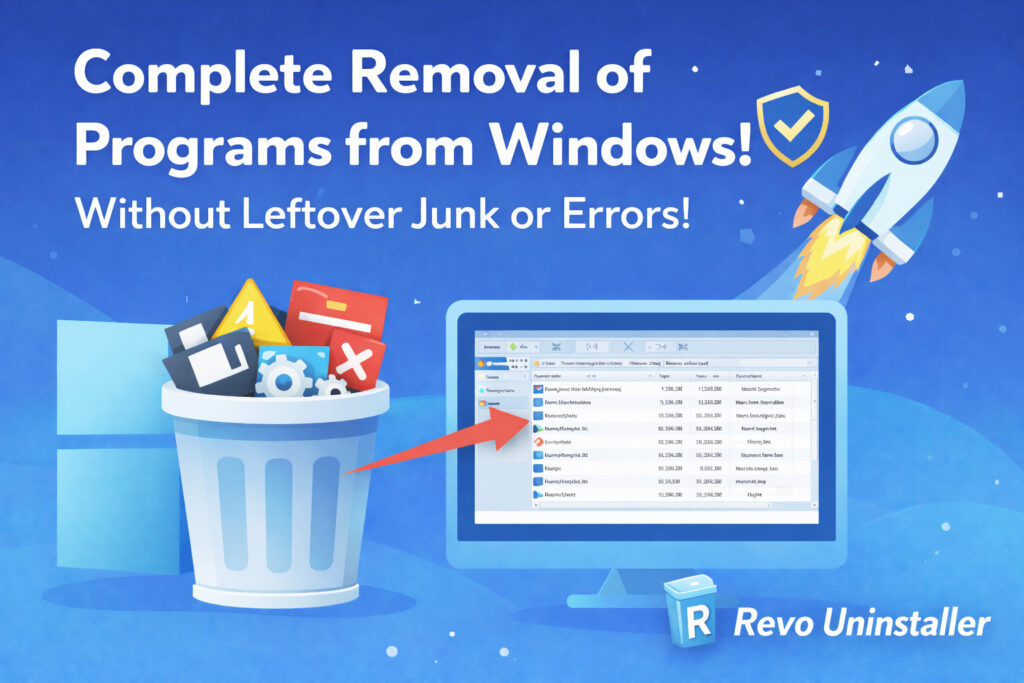
When you uninstall a program using Windows’ built-in “Add or Remove Programs” feature, you naturally assume the software is completely gone. But in reality, that’s rarely the case. Most applications leave behind hidden files, registry entries, background services, and configuration data that continue to sit on your system.
Over time, this leftover digital junk accumulates. It can clutter your PC, consume storage, and — more importantly — cause software conflicts.
This is exactly where Revo Uninstaller proves its value. It is one of the most trusted third-party uninstaller tools for Windows, designed to completely remove programs along with every trace they leave behind.
The Hidden Problem: Leftovers That Break Future Installations
One of the most frustrating Windows issues happens during software updates or reinstalls.
You install a newer version of a program, and suddenly:
- The app crashes at launch
- Features stop working properly
- Settings behave strangely
- The program refuses to open
- You get unexplained errors
In many cases, the real reason is leftover files or registry entries from the previous version interfering with the new installation.
When old configuration files remain in AppData folders or outdated registry keys persist, the new version may try to use corrupted or incompatible data. This conflict often leads to instability.
Using Revo Uninstaller before reinstalling software ensures:
- All previous version traces are completely removed
- No corrupted registry entries remain
- No hidden configuration files interfere
- The new installation starts fresh
This “clean slate” approach often fixes problems that standard reinstall attempts cannot.
Why Windows’ Default Uninstaller Isn’t Enough
The built-in Windows uninstaller typically:
- Removes only main program files
- Leaves registry entries untouched
- Doesn’t delete AppData folders
- Keeps leftover empty directories
- Misses startup and service entries
While this may seem harmless, over time it creates system clutter and increases the chances of software conflicts.
Revo Uninstaller solves this by going beyond the standard removal process.
Deep and Complete Removal
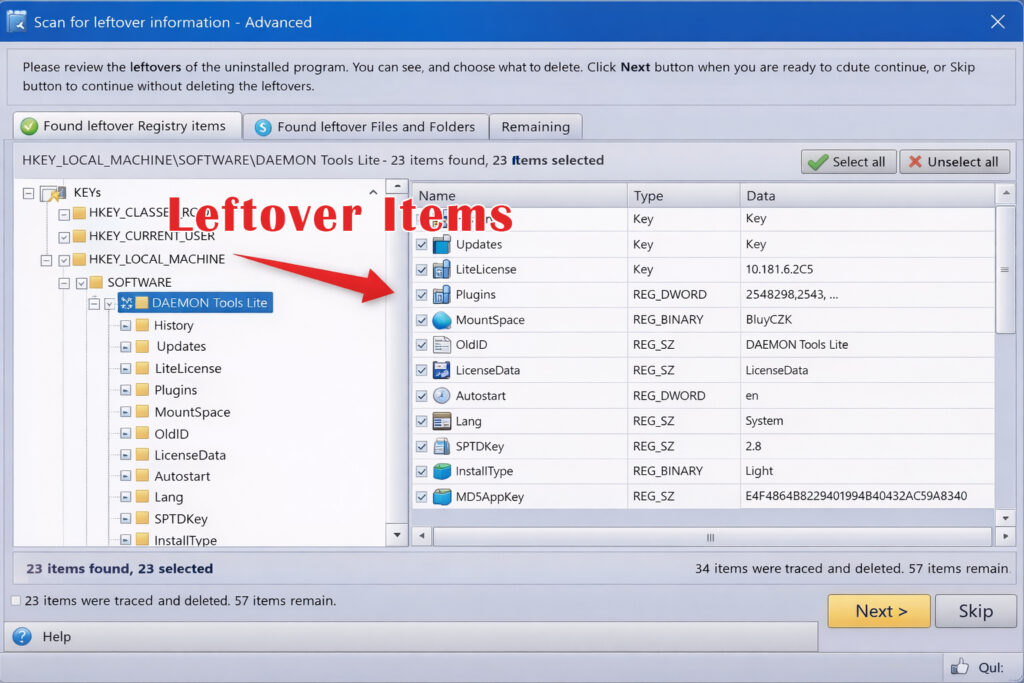
(Revo Uninstaller showing leftover junk during complete uninstallation)
Revo follows a powerful two-step process:
- It runs the program’s official uninstaller.
- It performs an advanced system-wide scan to detect leftovers.
It scans for:
- Registry entries
- Hidden folders
- Temporary files
- Startup items
- Background services
You can then safely remove all detected remnants with a single click.
The result? No leftover junk. No hidden traces. No interference with future installations.
Forced Uninstall for Stubborn Programs
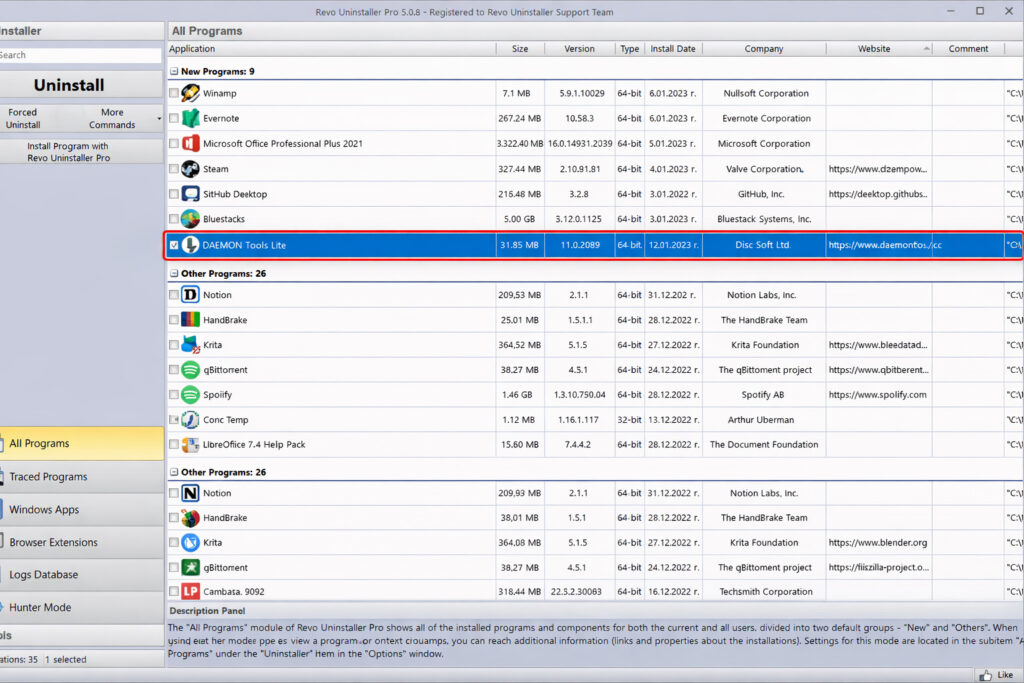
(Revo Uninstaller showing installed programs list before removal)
Some programs:
- Don’t appear in the uninstall list
- Show errors during removal
- Were partially deleted
- Refuse to uninstall completely
Revo’s Forced Uninstall feature is designed specifically for such cases.
It scans your system for traces linked to that program and removes them manually, even if the original uninstaller is missing.
This is extremely helpful when:
- Antivirus software fails to uninstall
- Corrupted installations exist
- Old drivers are stuck
- Software updates break mid-installation
Hunter Mode – Simple and Smart
Revo also offers a unique feature called Hunter Mode.
Instead of searching for a program manually:
- Drag the target icon onto a desktop shortcut or open window
- Revo instantly identifies the application
- You can uninstall it immediately
It’s intuitive and beginner-friendly, yet powerful.
Startup Manager for Better Boot Performance
Many applications quietly add themselves to Windows startup, slowing down your system’s boot time.
Revo allows you to:
- View all startup programs
- Disable unnecessary entries
- Improve startup speed
While it’s not a full optimization suite, this feature adds real practical value.
Safe and Transparent Cleanup
Deleting registry entries can sound risky, but Revo handles it responsibly.
Before removal, it:
- Creates a system restore point
- Lets you review detected leftovers
- Allows selective deletion
You remain in control at every step.
This balance between power and safety is one reason why Revo Uninstaller is trusted by both casual users and IT professionals.
Free vs Pro Version
Revo Uninstaller is available in:
- Free version – Ideal for most home users
- Pro version – Includes:
- Real-time installation monitoring
- Advanced scanning algorithms
- Extended leftover detection
- Multi-level backup system
- Browser extension removal
For everyday cleaning and complete uninstallations, the free version is often sufficient. Power users may benefit from the Pro features.
When Should You Use Revo Uninstaller?
Revo is especially useful if you:
- Frequently test new software
- Regularly update large applications
- Face recurring crashes after updates
- Experience issues after reinstalling programs
- Want to maintain a clean Windows environment
If you’ve ever reinstalled a program multiple times only to find the same issue returning, leftover traces were likely the culprit. Revo eliminates that risk.
Related Windows Guides
- Remove the Recommended Section from the Start Menu
https://moderntechdigest.com/remove-the-recommended-section-start-menu/ - Speed Up Windows 10 and 11 (Proven Fixes)
https://moderntechdigest.com/speed-up-windows-10-and-11/ - Restore the Classic Right-Click Menu in Windows 11
https://moderntechdigest.com/restore-the-classic-right-click-menu/ - Move the Windows 11 Start Menu to the Left
https://moderntechdigest.com/windows-11-start-menu-move-to-the-left/
Final Verdict: The Smart Way to Keep Windows Clean!
Revo Uninstaller is far more than a basic uninstaller. It’s a complete software removal solution designed to eliminate every trace of an application.
Its biggest advantage is ensuring zero leftover garbage, which not only keeps your system clean but also prevents crashes and conflicts when installing updated versions of software.
If you want clean reinstalls, fewer crashes after updates, and a clutter-free Windows experience, Revo Uninstaller is easily one of the best tools you can add to your PC maintenance toolkit.