When Microsoft introduced Windows 11, one of the quieter but most noticeable changes wasn’t the centered taskbar or rounded corners. It was the right-click menu.
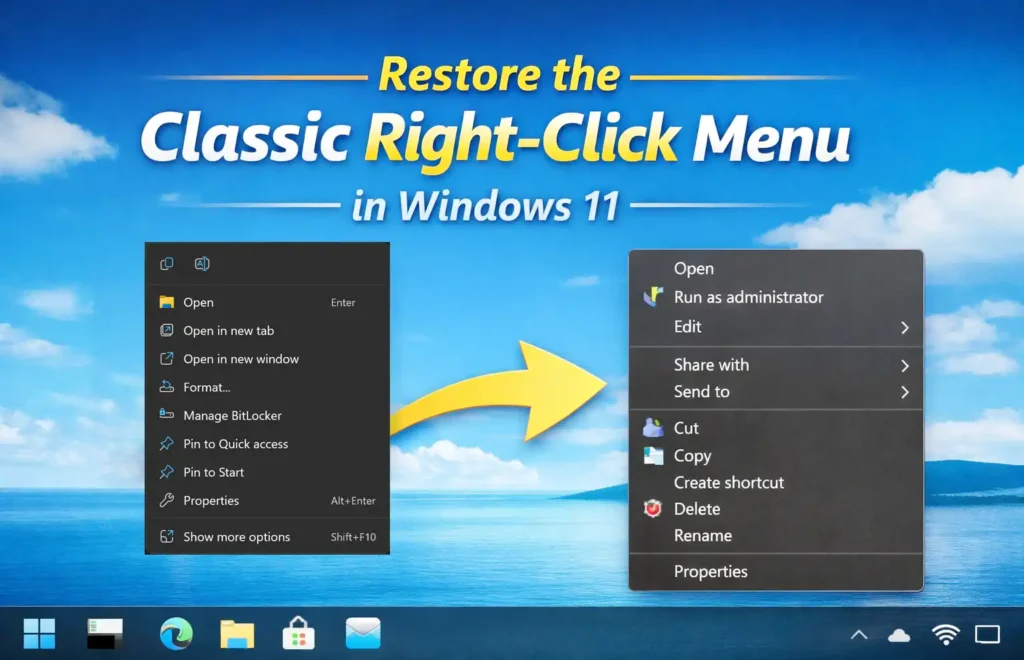
The familiar, fully expanded context menu that had existed (in various forms) since Windows 10 was replaced with a cleaner, condensed version. Frequently used actions like Copy, Paste, Rename, Delete were converted into compact icons. Less common options were tucked behind a secondary layer labeled “Show more options.”
On paper, the redesign made sense. Microsoft wanted a modern, decluttered interface that aligned with Windows 11’s visual language. In practice, however, the change introduced an extra click for many everyday workflows.
And that’s why a simple registry tweak to restore the classic right-click menu continues to circulate across Reddit, ElevenForum, and other Windows communities years after launch.
Let’s break down what changed, how to bring the old menu back, and why users remain divided on this design decision.
What Changed in Windows 11’s Right-Click Menu — And Why It Matters
The Windows 11 context menu was redesigned with three key goals:
- Reduce visual clutter
- Prioritize commonly used actions
- Improve consistency for third-party app integration
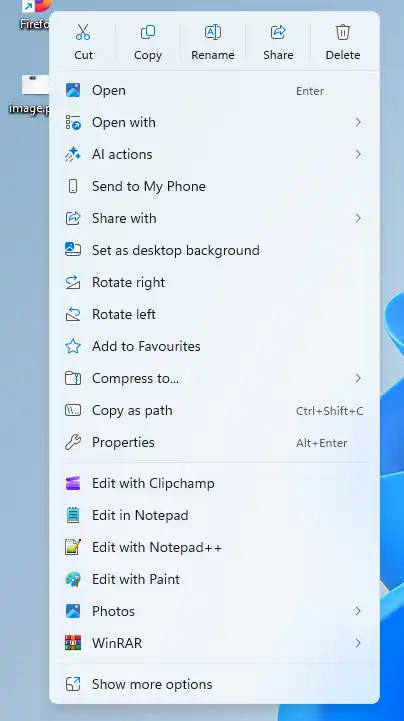
The new Windows 11 Right-click Menu
The new menu features:
- Compact icon-based quick actions
- A simplified layout
- A secondary “Show more options” panel that loads the legacy menu
For new users, the change often feels intuitive. For long-time Windows users, especially power users, it can feel like friction.
The issue isn’t just aesthetics. It’s muscle memory. If you’re customizing Windows 11 to feel more like older versions, you may also want to move the Start menu to the left like in Windows 10.
Users who frequently access options like “Open with,” “Run as administrator,” file compression tools, or version control integrations now need an extra click. Multiply that across dozens of interactions per day, and the redesign starts to feel inefficient.
That’s where the registry workaround comes in.
How to Restore the Classic Right-Click Menu in Windows 11
This method works on most Windows 11 builds (including 21H2, 22H2, and 23H2 at the time of writing). It modifies a registry key to force Windows to use the legacy context menu.
* Always be cautious when editing the registry.
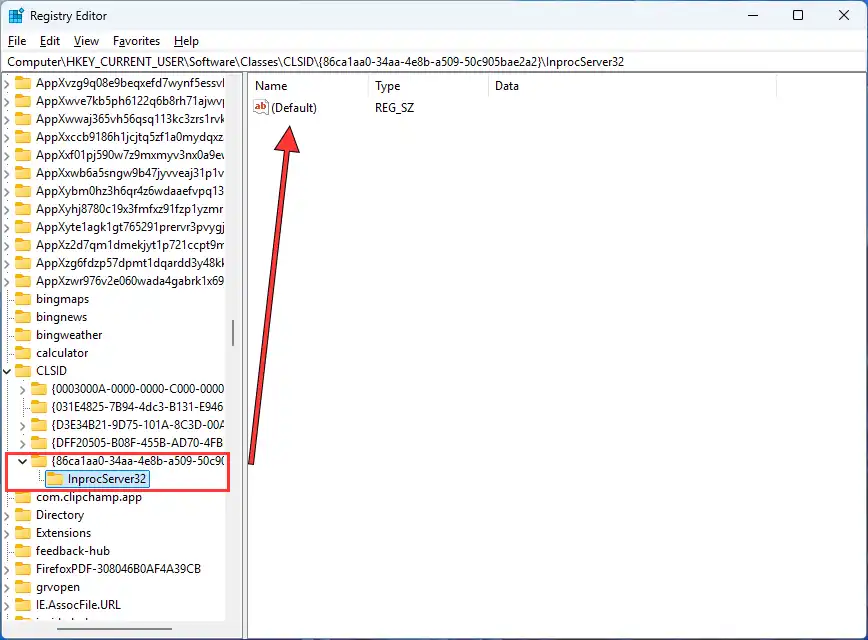
Step 1: Open Registry Editor
- Press Win + R
- Type
regedit - Press Enter
- Approve the User Account Control prompt
Step 2: Navigate to the CLSID Key
Go to:
HKEY_CURRENT_USER\Software\Classes\CLSID
You can paste this directly into the Registry Editor address bar.
Step 3: Create a New Key
- Right-click CLSID
- Select New → Key
- Name it exactly:
{86ca1aa0-34aa-4e8b-a509-50c905bae2a2}
Include the curly braces.
Step 4: Create a Subkey
- Right-click the new key
- Select New → Key
- Name it:
InprocServer32
Step 5: Leave the Default Value Blank
- Click InprocServer32
- Double-click (Default) in the right pane
- Ensure the Value data is empty
- Click OK
Step 6: Restart Explorer
You have two options:
Option A (Quickest)
- Press Ctrl + Shift + Esc
- Open Task Manager
- Find Windows Explorer
- Right-click → Restart
Option B
Restart your PC.
After this, right-click on the desktop or any file. The classic Windows 10-style context menu should appear instantly — no “Show more options” required.
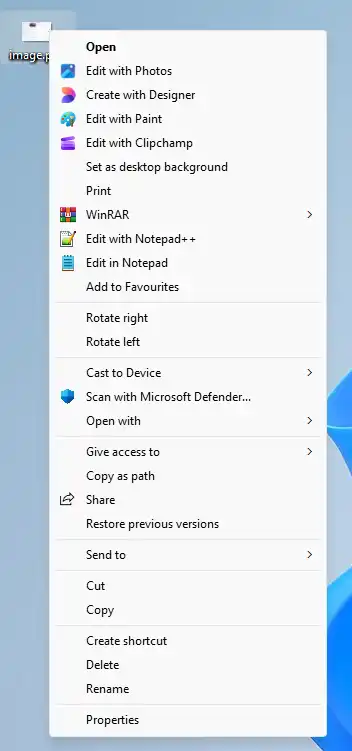
The classic Right-click Menu
To revert, simply delete the {86ca1aa0-34aa-4e8b-a509-50c905bae2a2} key and restart Explorer again.
Many users also simplify the Start menu by removing the Recommended section in Windows 11 to reduce clutter.
How the Community Reacted
The registry workaround has been widely discussed on Reddit and Windows forums. The reactions are far from uniform.
The “Productivity First” Crowd
Many users describe the extra click as unnecessary friction. On Reddit threads discussing Windows 11 tweaks, users often say things like:
“I right-click hundreds of times a day. That extra layer just slows me down.”
Another user described the redesign as “aesthetic over function,” arguing that Microsoft prioritized visual cleanliness over workflow efficiency.
Power users — especially developers, IT admins, and creative professionals — are more likely to enable the registry tweak. For them, context menus are tools, not decorative UI elements.
The “It’s Fine as Is” Camp
On the other side, some users defend the new design.
A common sentiment:
“After a week, I stopped noticing it.”
Others argue that most casual users rarely access advanced options, so hiding them behind a secondary menu keeps things simpler.
There’s also the design consistency argument. The Windows 11 menu better matches the system’s modern UI, while the classic menu feels visually dated.
If your system feels slow while working with many files and apps, check our guide on how to speed up Windows 10 and 11.
Why This Change Became Controversial
This isn’t really about right-click menus.
It’s about control.
Long-time Windows users are accustomed to customization and direct access. When a familiar workflow changes — even slightly — it triggers pushback.
There are three deeper factors behind the reaction:
1. Muscle Memory Disruption
Years of repetition create automatic behavior. An added click interrupts that rhythm.
For power users, friction compounds quickly.
2. Perceived Loss of Efficiency
Even if the actual time lost is small, users perceive inefficiency. Perception matters more than milliseconds.
3. Trust in Microsoft’s Design Direction
Every UI redesign signals a philosophy shift. Some users interpret the new menu as part of a broader move toward simplification — and possibly reduced flexibility.
That interpretation may not be entirely fair, but it shapes sentiment.
Will Microsoft Remove This Workaround?
That’s unclear.
The registry tweak essentially forces Windows to load the legacy context menu handler. Microsoft could disable this pathway in a future update.
Historically, Microsoft has tolerated such tweaks unless they conflict with security or long-term architectural changes.
But relying on unofficial registry hacks always carries risk.
If Microsoft eventually fully modernizes the context menu backend, this method may stop working.
Should You Use the Classic Menu in 2026?
It depends on your workflow.
Use the registry tweak if:
- You frequently access advanced context options
- You prefer immediate visibility over layered UI
- You value workflow speed above visual minimalism
Stick with the default menu if:
- You mostly use basic options (Copy, Paste, Rename, Delete)
- You prefer the modern aesthetic
- You want to avoid registry modifications
There’s no objectively correct choice. It’s about alignment with how you use your PC.
Related Windows 11 Guides
- How to move the Windows 11 Start menu to the left
- How to remove the Recommended section from the Start menu
- Speed up Windows 10 and 11 with proven fixes
The Bigger Takeaway
The Windows 11 right-click menu debate highlights something important: small interface decisions can carry outsized emotional weight.
When Microsoft redesigned the context menu, it wasn’t just simplifying UI. It was redefining how users interact with one of the most fundamental elements of the operating system.
The registry hack’s popularity suggests that efficiency still matters deeply to a significant portion of the Windows user base.
At the same time, the fact that many users adapt without issue shows that design transitions, while disruptive, are survivable.
Ultimately, this isn’t a battle between “old” and “new.” It’s a reflection of two different philosophies:
- Minimalism and guided simplicity
- Direct access and granular control
Windows 11 is still navigating that balance.
So here’s the question:
Have you restored the classic right-click menu — or have you adapted to the new one?
Your answer probably says more about your workflow than about Microsoft’s design choices.