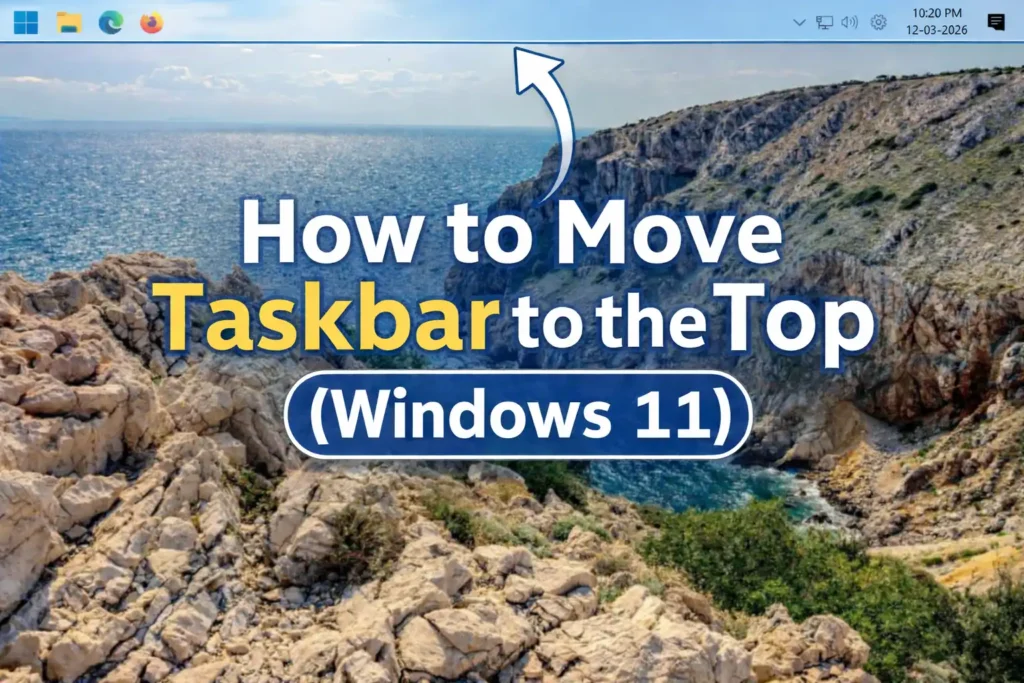
In Windows 11, the taskbar appears at the bottom of the screen by default. Unlike Windows 10, where users could easily change the taskbar location, Windows 11 removed the built-in option to move it.
Many users look for ways to move the taskbar to the top in Windows 11 or change the taskbar position like they could in earlier versions of Windows. However, Microsoft removed this customization option, which is why the taskbar remains fixed at the bottom of the screen by default. As a result, users often search for solutions to set the Windows 11 taskbar to the top, move the taskbar from the bottom to the top, or otherwise customize its position.
While Windows 11 does not provide a native setting for this, you can still place the taskbar on top using a small customization tool.
Quick Answer:
You can move the taskbar to the top in Windows 11 by using ExplorerPatcher. Install the tool, open its Taskbar settings, select Windows 10 taskbar style, choose Top under taskbar location, and restart File Explorer. This will place the Windows 11 taskbar at the top of the screen.
Can You Move the Taskbar to the Top in Windows 11?
Yes, you can move the taskbar to the top in Windows 11, but the option is not available in the default system settings. To change the taskbar position, you need to use a customization tool such as ExplorerPatcher, which restores several taskbar customization features that were removed in Windows 11.
Step-by-Step Guide to Move the Taskbar to the Top in Windows 11
One of the easiest ways to put the Windows 11 taskbar on top is by using ExplorerPatcher, a lightweight tool that enables additional taskbar customization options.
Follow these steps to move the taskbar from the bottom to the top of the screen –
- Visit the ExplorerPatcher releases page and download the file ep_setup.exe from the latest release. Follow the steps as below –
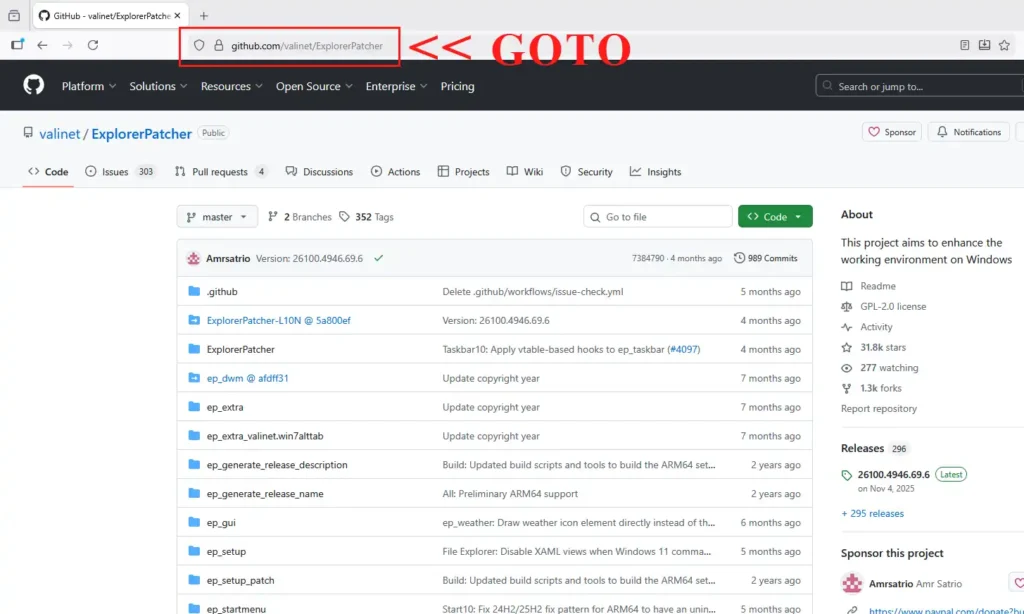
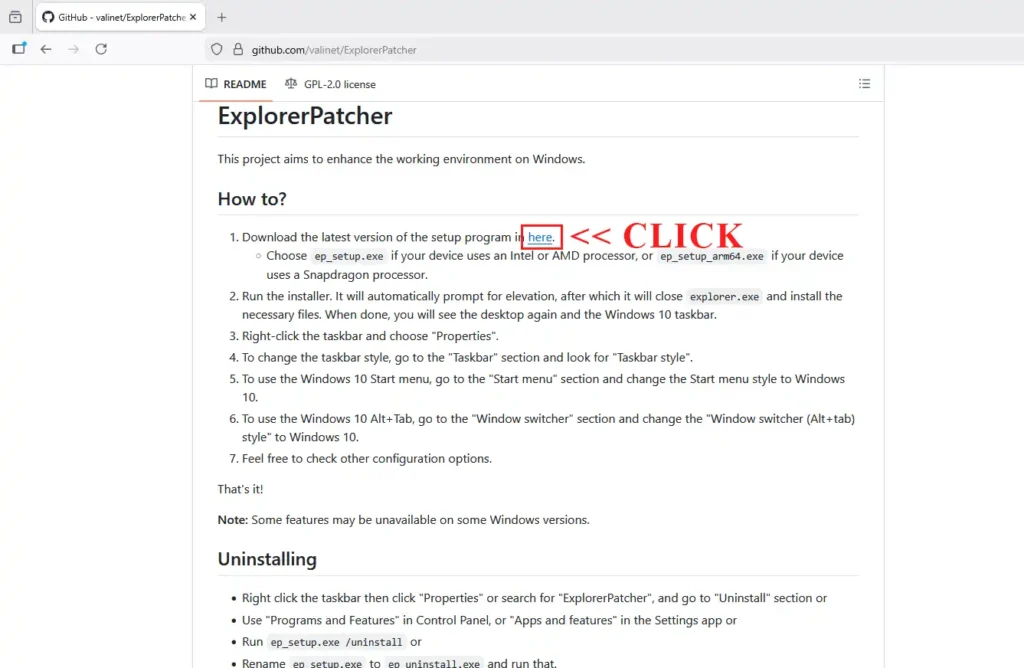
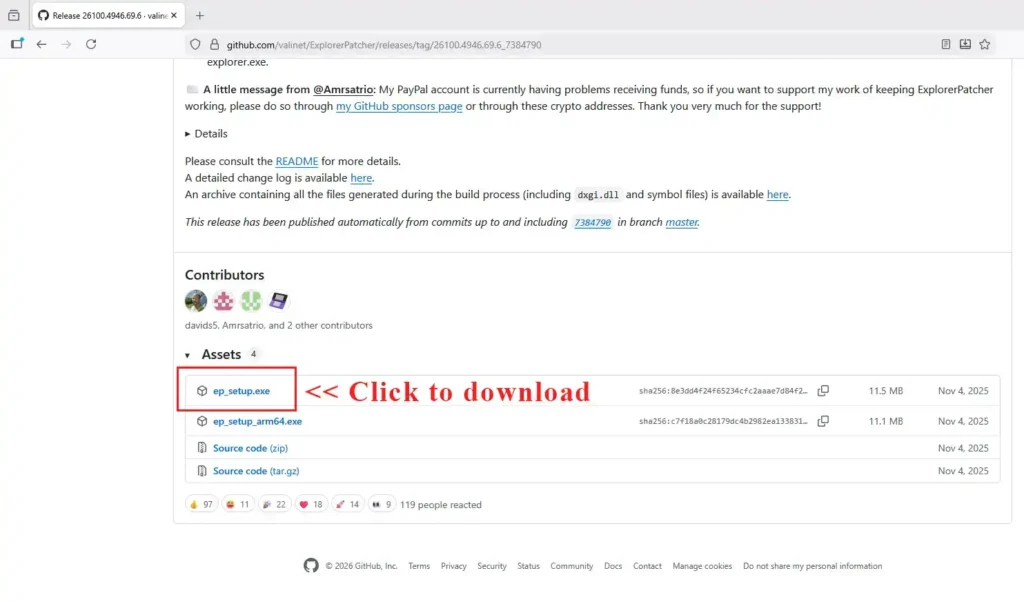
- After the file downloads, double-click the ep_setup.exe to install ExplorerPatcher on your system. (Windows Explorer will restart)
- Once the installation is complete, right-click the Taskbar and select Properties.
This will open the ExplorerPatcher settings window. - In the settings window, go to the Taskbar tab.
- Under Taskbar style, select Windows 10.
- Next, locate Primary taskbar location on screen and choose Top from the dropdown menu.
- Then find Start button style and select Windows 11.
- Finally, click Restart File Explorer in the bottom-left corner of the ExplorerPatcher window.
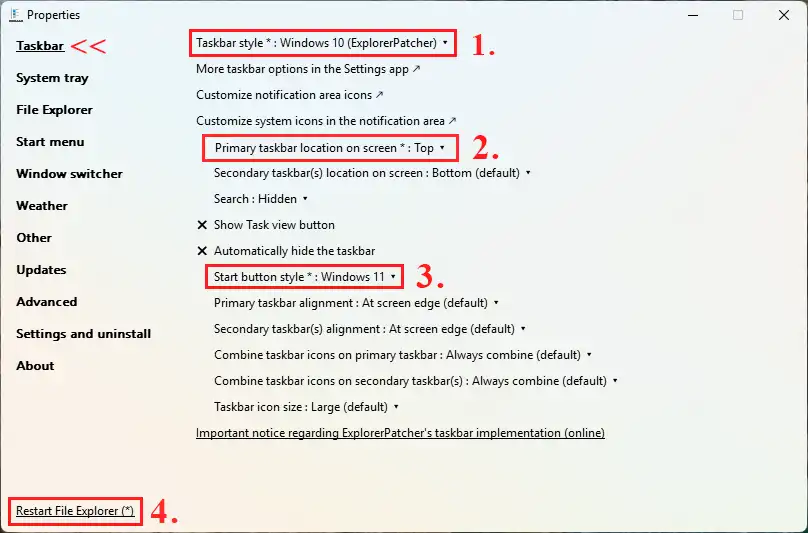
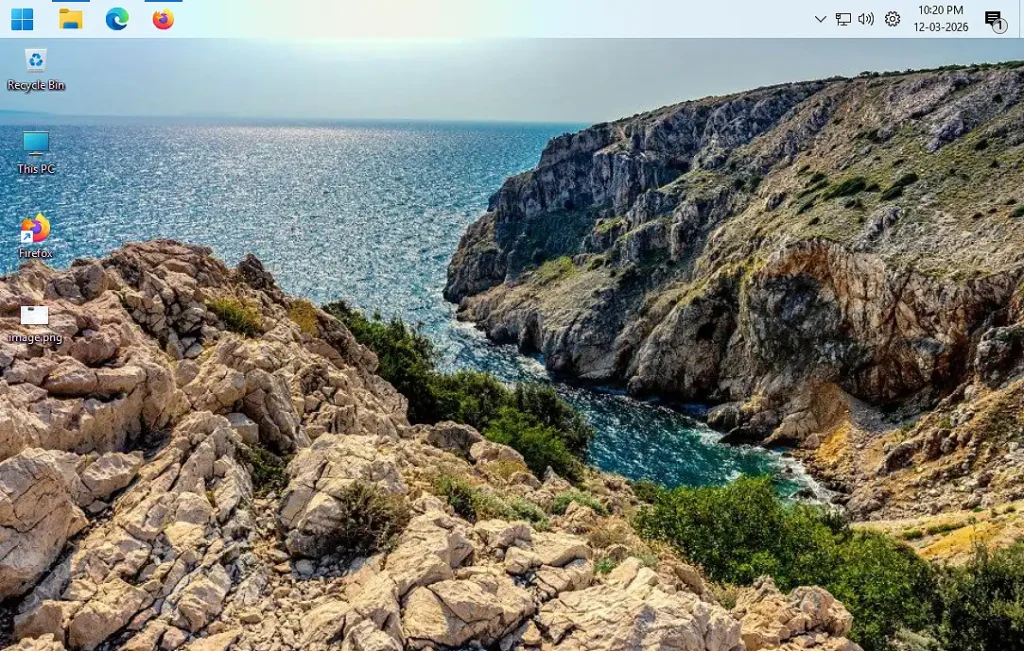
Once File Explorer restarts, the Windows 11 Taskbar will appear at the top of the screen instead of the bottom. (See below photo)
Note: After major Windows updates, ExplorerPatcher may need to be updated for compatibility with newer builds of Windows 11.
Older Registry Method (No Longer Recommended)
In early builds of Windows 11, some users were able to move the taskbar to the top using a registry modification. However, this workaround stopped working reliably in later updates and often causes interface issues.
Because of this, the registry method is no longer recommended. Tools like ExplorerPatcher provide a more stable way to change the taskbar position.
Related Windows 11 Customization Guides
- How to Move the Start Menu to the Left in Windows 11
- How to Remove the Recommended Section from the Windows 11 Start Menu
- Computer Suddenly Slow? 10 Proven Ways to Speed Up Windows 10 & 11
Frequently Asked Questions
Can you move the taskbar to the top in Windows 11 without third-party software?
No. Windows 11 does not currently include a built-in setting to move the taskbar to the top of the screen. A customization tool such as ExplorerPatcher is required.
Why is the Windows 11 taskbar stuck at the bottom?
The taskbar in Windows 11 was redesigned and the option to change its position was removed. This is why it remains fixed at the bottom of the screen by default.
Is ExplorerPatcher safe to use?
ExplorerPatcher is a widely used open-source tool that enables additional taskbar customization options. However, since it is a third-party application, it should always be downloaded from its official release page.
Can I move the taskbar back to the bottom?
Yes. Open the ExplorerPatcher settings again, change Primary taskbar location on screen to Bottom, and click Restart File Explorer to apply the change.
How do I move the Windows 11 taskbar from bottom to top?
To move the Windows 11 taskbar from bottom to top, install ExplorerPatcher, open its taskbar settings, select the Windows 10 taskbar style, choose Top under taskbar location, and restart File Explorer. This will reposition the taskbar at the top of the screen.
Using ExplorerPatcher is currently one of the simplest ways to customize the Windows 11 taskbar and move the taskbar to the top of the screen, even though this feature is not available in the default Windows settings.