If your Windows 11 update failed, is stuck at 0% or 100%, or is not installing, the most effective fixes are: resetting Windows Update components, clearing the SoftwareDistribution folder, repairing system files using DISM + SFC, and manually installing the update if it keeps failing. These methods fix most cases, including common errors like 0x80070002 and 0x800f0922.
Method 1: Reset Windows Update Components (Fix Update Not Installing)
If your Windows 11 update keeps failing or not downloading, this is the most reliable fix.
Steps:
- Click Start → type cmd
- Right-click → Run as administrator
- Run these commands one by one:
net stop wuauserv
net stop bits
net stop cryptsvc
net stop msiserver- Press Win + E → go to C:\Windows
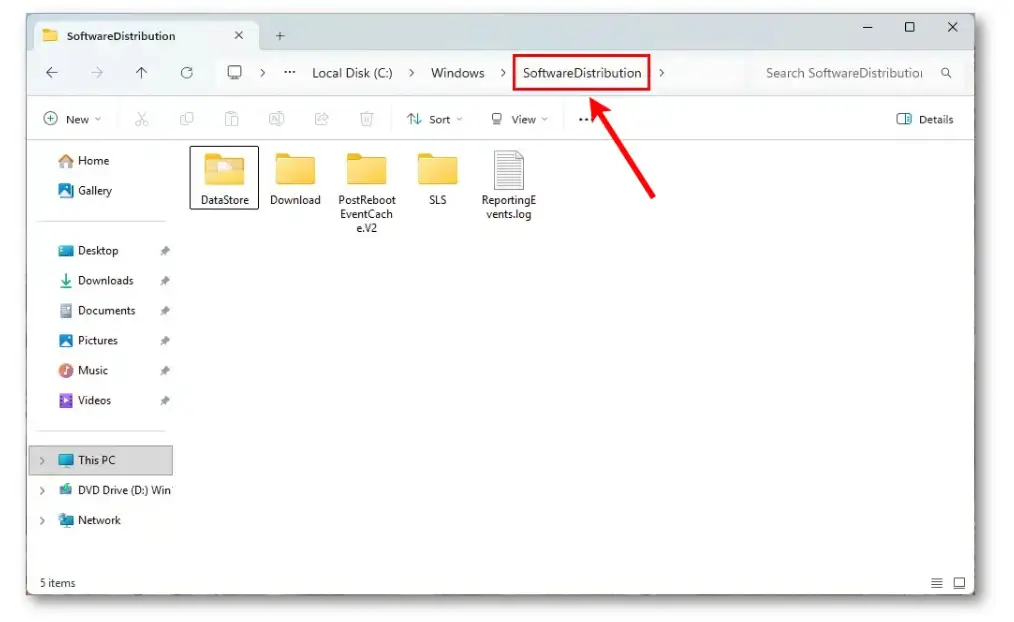
- Find SoftwareDistribution folder
- Right-click → Rename →
SoftwareDistribution.old
- Right-click → Rename →
👉 This clears corrupted update files causing update failures.
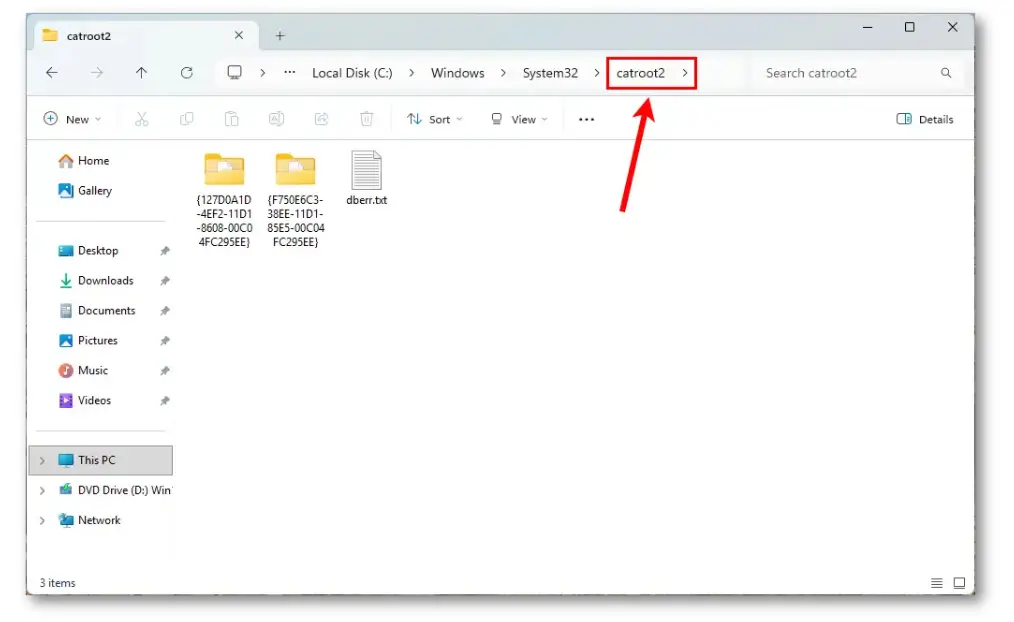
- Now go to:
C:\Windows\System32 - Rename catroot2 folder →
catroot2.old
👉 This resets update security components.
- Go back to Command Prompt and run:
net start wuauserv
net start bits
net start cryptsvc
net start msiserver- Restart your PC
Method 2: Fix Corrupted System Files (DISM + SFC)
If your Windows update is stuck or failing repeatedly, system corruption is often the cause.
Steps:
- Open Command Prompt as administrator
- Run:
DISM /Online /Cleanup-Image /RestoreHealth👉 Fixes Windows image used for updates.
- After it finishes, run:
sfc /scannow👉 Repairs corrupted system files blocking updates.
Method 3: Fix “Windows Update Stuck at 0% or 100%”
If your Windows 11 update is stuck at 0%, 100%, or pending restart, clear the update queue.
Steps:
- Press Win + E
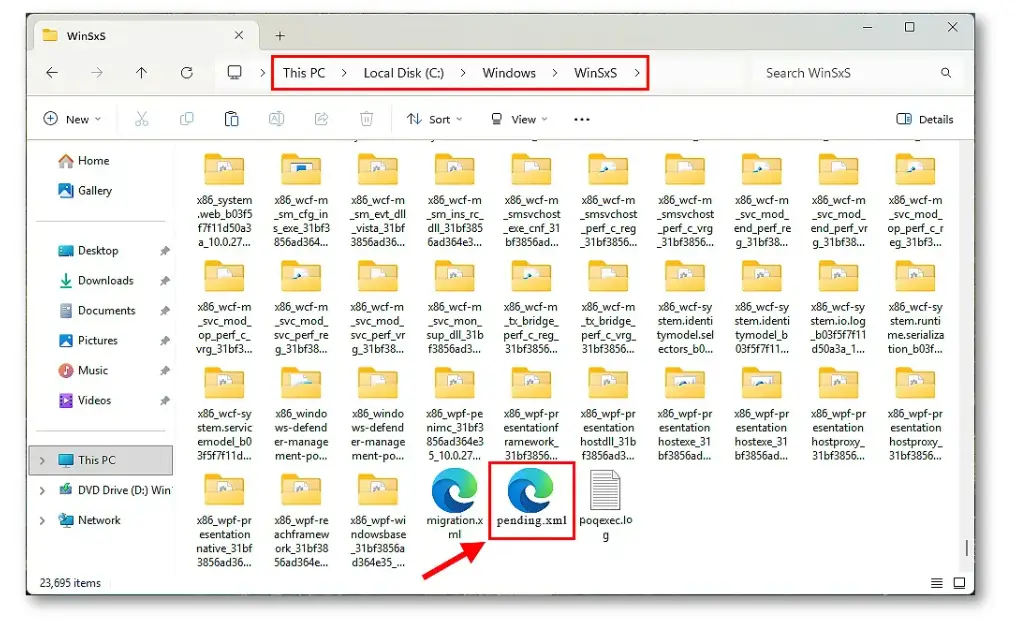
- Go to:
C:\Windows\WinSxS - Delete file:
pending.xml (if present) - Restart your PC
Method 4: Manually Install Windows Update (Bypass Failure)
If your Windows update keeps failing with error codes, manual install works reliably.
Steps:
- Go to Settings → Windows Update → Update history
- Note the KB number
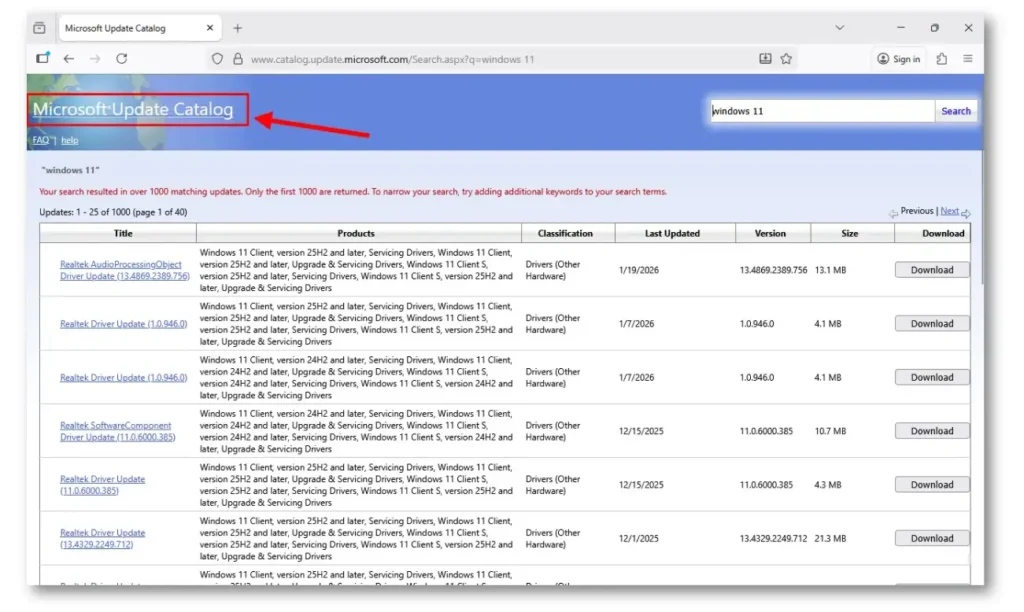
- Search:
Microsoft Update Catalog - Download correct version (x64)
- Install manually
👉 Works when Windows Update is not installing updates.
Method 5: Fix Windows Update Error Codes
Common errors:
- 0x80070002 / 0x80070003 → Missing update files
- 0x800f0922 → Network or system issue
- 0x80070070 → Low disk space
👉 Most of these are fixed by:
- Resetting update components
- Running DISM + SFC
Method 6: Disable Antivirus (Fix Update Blocking)
If updates are failing silently, antivirus may be blocking them.
- Temporarily disable antivirus
- Install update
- Enable again
Method 7: Last Fix – Reinstall Windows Without Losing Data
If nothing works and Windows 11 update still fails, use in-place upgrade.
- Download Windows 11 Installation Assistant
- Run and choose Keep files and apps
👉 Fixes almost all update issues.
Final Fix Order (Recommended)
If your Windows 11 update is stuck or not installing, follow this order:
- Reset update components
- Run DISM + SFC
- Install update manually